The Fanvault Payouts Dashboard is the hub where creators see exactly what they've earned, what's still clearing, and what's ready to land in their bank account. Fanvault Payouts Dashboard is the single screen inside your Fanvault account that shows available balance, pending earnings, and full payout history, then lets you trigger a transfer to your connected Stripe-backed bank account. No spreadsheets, no DM to support, no guessing when the money moves.
⚡ Key Takeaways
- The Payouts Dashboard shows your available balance, pending earnings, and full payout history in one screen.
- Fanvault's 8% fee means the number you see is the 92% you actually keep.
- Revenue is broken down by auctions, subscriptions, tips and DMs, and wishlist purchases.
- Request a payout manually, or let Stripe Connect auto-pay you on a rolling schedule.
- Export your payout history for clean tax-season records.
Because Fanvault takes 8% per transaction and creators keep 92%, the math on this screen is refreshingly simple. Here's how to use it.
How do you open the Payouts Dashboard?
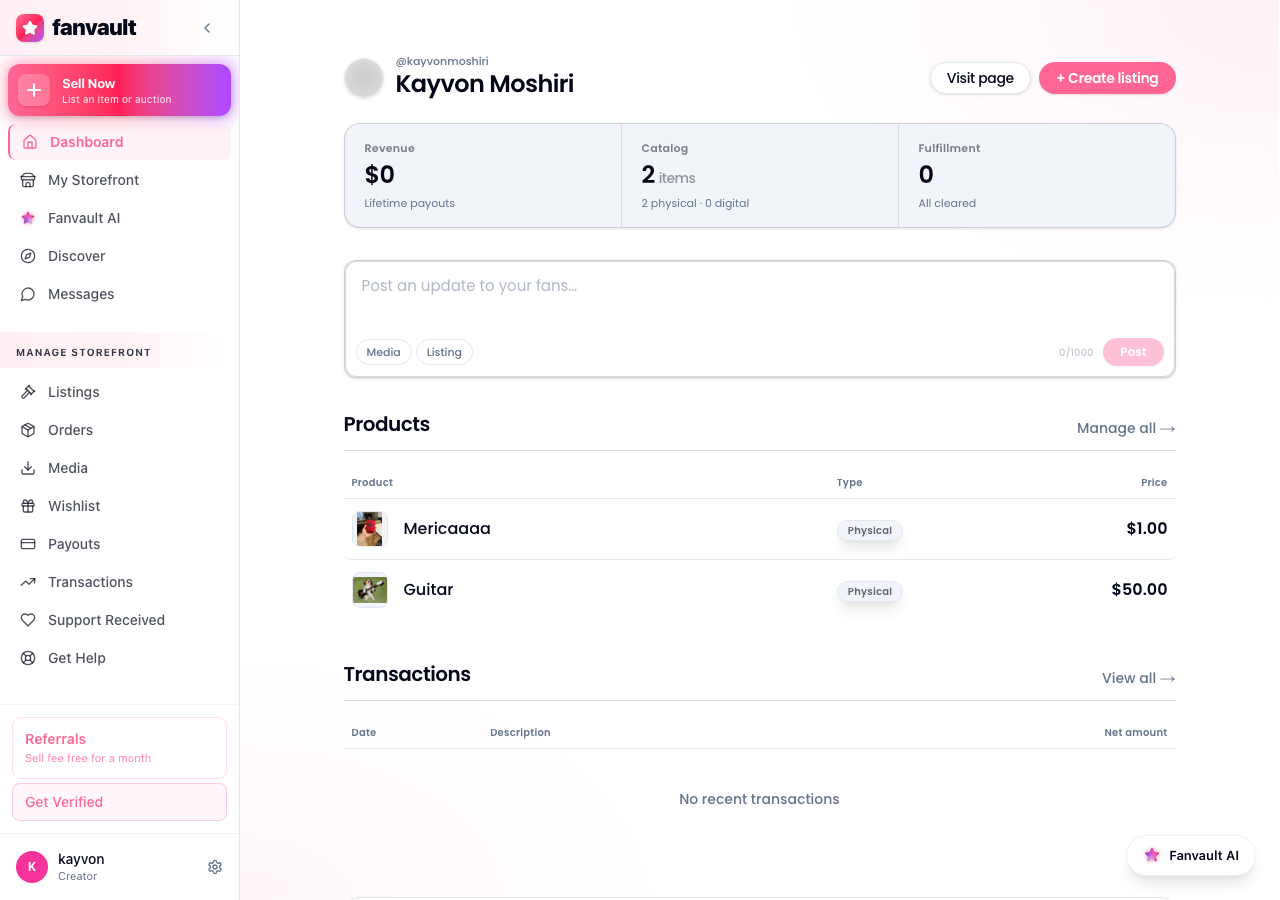
From your Fanvault account, head to the dashboard sidebar and click Payouts under the Selling section. The hub loads in under a second and puts your most important numbers at the top: lifetime earnings, current available balance, and pending payouts that are still clearing.
If this is your first visit, take a beat to scan the layout. The top row is your balance summary, the middle is your activity breakdown by revenue source, and the bottom is your full payout history.
What does your available balance actually mean?
Available balance is the money Fanvault has fully cleared and is ready to send to your bank the moment you request a payout. It already reflects the 92% creator share, so the number you see is the number that will land.
Pending balance is everything that's still inside Stripe's standard settlement window (usually a few business days after a fan pays). Auctions, drops, tips, paid DMs, and wishlist purchases all funnel through the same balance, so a busy sales week shows up here as one growing total instead of five scattered ones.
How do you read your earnings by source?
Scroll past the balance row and you'll find a breakdown of where your money actually came from. Fanvault groups revenue into the four buckets creators care about most:
- Auctions, including buy-it-now drops and authenticated memorabilia
- Subscriptions and paywalled posts
- Tips and paid DMs
- Wishlist purchases
This view is the one to bookmark. It tells you which part of your storefront is actually paying the bills, so you can lean into what's working (more drops, more paywalled content, more wishlist promotion) instead of guessing.
How do you request a payout?
When your available balance is greater than zero, the Request Payout button at the top of the dashboard becomes active. Click it, confirm the amount, and Fanvault hands the transfer off to Stripe, which moves the funds to the bank account you connected at onboarding.
You don't need to do this manually if you don't want to. Stripe Connect can auto-pay you on a rolling schedule, but the manual request is there for creators who want to time payouts around a specific bill, a drop launch, or a tax-prep workflow.
How do you review your payout history?
Every transfer you've ever taken sits in the payout history table at the bottom of the dashboard. Each row shows the date, the amount, the status (paid, in transit, failed), and a reference ID you can quote to support if anything ever looks off.
For tax season, this is gold. Export the history, hand it to your accountant, and you've covered the basics. No reconstructing from emails, no chasing screenshots.
What if something looks wrong?
If a payout shows as failed, the cause is almost always something on the bank side: closed account, mismatched name, bank holiday. Open the failed row, copy the reference ID, and message Fanvault support from inside the dashboard. Because every creator on Fanvault is verified at onboarding through Stripe Connect, fixes usually take one round-trip instead of a week of identity checks.
For anything else (a missing transaction, an unexpected pending balance, a number that doesn't line up with your storefront activity), the payout history plus the source breakdown is enough to reconstruct what happened. Bring both when you ping support and you'll get an answer fast.
What does this unlock for you?
The Payouts Dashboard turns Fanvault from a place where money happens to you into a place where you can see, plan, and time it. You know what you've earned, you know what's clearing, and you know when to pull it. That's the difference between running a creator business and just hoping the deposits show up.
Frequently Asked Questions
How long does a Fanvault payout take to hit my bank?
Once your available balance has cleared inside Fanvault, a payout request is handed to Stripe Connect, which typically settles to your connected bank account within a few business days. The exact window depends on your country and bank. You can watch the status update in your payout history table, where it moves from in transit to paid the moment the funds land.
Why is some of my money showing as pending instead of available?
Pending balance is revenue that's still inside Stripe's standard settlement window. When a fan pays for an auction win, a subscription, a tip, or a wishlist item, the funds need a short clearing period before Fanvault can release them. Once that window closes, the amount automatically rolls into your available balance and you can request a payout.
Does the Payouts Dashboard show what Fanvault took as a fee?
Yes. Every number on the dashboard is your share, not gross sales. Fanvault's platform fee is 8% per transaction, so all balance, pending, and history figures already reflect the 92% you keep. The breakdown by source (auctions, subscriptions, tips and DMs, wishlist) is also net of the platform fee.
Can I set up automatic payouts instead of requesting them manually?
Yes. Stripe Connect, which powers Fanvault payouts, supports automatic payouts on a rolling schedule (daily, weekly, or monthly depending on your account). The manual Request Payout button is there for creators who want to time transfers around a launch, a bill, or a tax workflow. You can use either, or switch between them, from your payouts settings.