
Fanvault Creator Payouts Hub is the dashboard creators use to view their available balance, track pending and completed payouts, and manage payout settings from a single screen. With Fanvault keeping just 8% per transaction (you keep 92%), the hub makes it easy to see exactly where every dollar lands and when it hits your bank.
⚡ Key Takeaways
- The Payouts Hub centralizes lifetime earnings, available balance, and pending payouts in one screen under Dashboard > Payouts.
- Fanvault takes 8% per transaction. You keep 92%, and the math is visible on every payout line.
- Pending payouts show net amount, revenue source, and the Stripe Connect arrival date that matches your country's schedule.
- Completed payouts include downloadable receipts and a transaction-level breakdown, ready for tax-season exports.
- Bank account, currency, and verification edits route through Stripe Connect and sync back to Fanvault automatically.
- Delayed payouts surface inline with a one-tap Stripe diagnostic, and retries happen automatically on the next cycle.
Where do creator payouts live on Fanvault?
Your payout hub lives inside the creator dashboard, under the Selling section. Open Fanvault, click Dashboard in the top nav, then click Payouts in the left sidebar. The page loads in under a second and shows your lifetime payout total, your current available balance, and a running timeline of recent activity. If you have ever wondered how much you have made on the platform total, that number is the first thing you see.
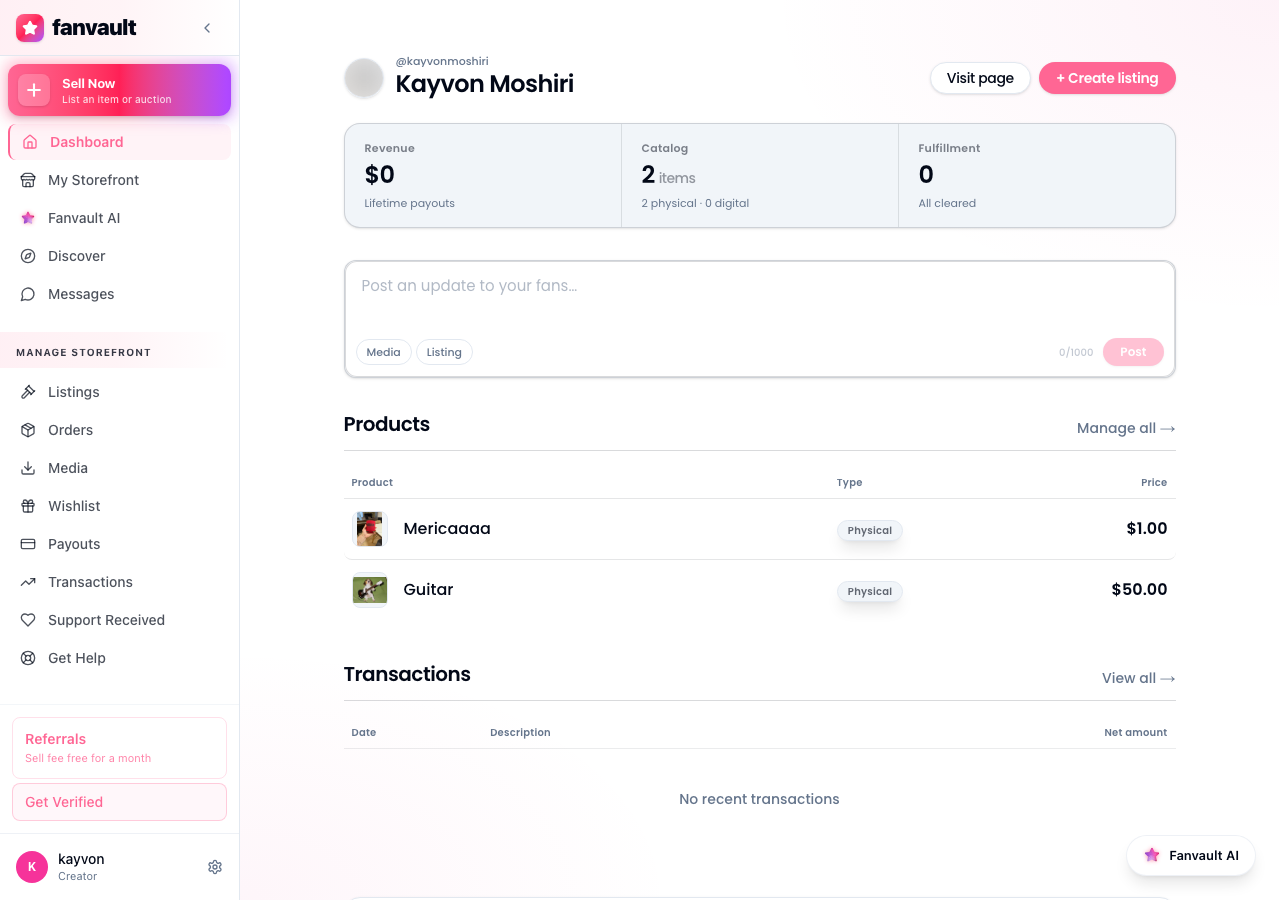
What does your balance and earnings panel show?
The top of the hub breaks your earnings into three numbers: lifetime total, available now, and pending. Lifetime total is everything you have ever earned on Fanvault, net of the 8% platform fee. Available now is what is ready to be paid out today. Pending is what is still in the standard Stripe holding window before it clears.
Each number is clickable. Tap any of them to drill into the underlying transactions, filterable by source: auction wins, buy-it-now drops, tips, paid DMs, memberships, and wishlist purchases. This makes it easy to see which revenue stream is actually moving the needle for you this month.
How do you track a pending payout?
Pending payouts show up the moment a fan transaction settles. Click the Pending tile to see each one with the amount net of the platform fee, the expected arrival date, and the source of the funds. Stripe Connect handles the actual transfer, and the arrival date matches your country's standard payout schedule.
Fanvault supports payouts across 24 countries at launch, and your cadence follows local Stripe rules (daily, weekly, or monthly). The hub respects whatever you have configured and shows the next expected payout at the top of the list, so you always know when the money is moving.
How do you review completed payouts?
The Completed tab is your historical ledger. Every payout that has hit your bank shows up here with the date, the amount, the bank account it landed in, and a downloadable receipt. Use the date filter to pull a clean export for tax season, or click any line for a full breakdown of the transactions that made up that payout.
The breakdown view is where Fanvault's fee transparency really shows. You see the gross transaction, the 8% platform fee, the Stripe processing fee, and the net that hit your bank, every time, for every payout. No hidden math, no quarterly reconciliations.
How do you update your payout settings?
Click Settings inside the hub to open your Stripe Connect dashboard. From there you can swap the bank account on file, adjust your default currency, or update the legal information you verified at onboarding. Changes flow back to Fanvault automatically, so your next payout uses the new details without you needing to re-confirm anywhere else.
If you are based outside the United States, you can also adjust payout currency here. Stripe Connect handles the FX conversion, and the hub displays both the source currency and your bank's receiving currency so there are no surprises on settlement day.
What if a payout is delayed?
If a payout misses its expected arrival date, the hub shows a yellow status on the line with a one-tap option to view the Stripe diagnostic. Common reasons are bank holidays, a verification document that needs re-uploading, or a returned ACH transfer. Resolve the prompt and the payout retries automatically on the next cycle, no support ticket required.
For anything the diagnostic does not cover, the hub has a direct link to Fanvault creator support. Most delays get cleared the same business day.
The Creator Payouts Hub puts every dollar you have ever earned, every dollar still in flight, and every dollar already in your bank in one place, and it does it with the cleanest fee math in the business. You build, you sell, you keep 92%. The hub just makes sure you can see all of it.
Frequently Asked Questions
How much does Fanvault take from each payout?
Fanvault charges a flat 8% platform fee per transaction. Creators keep 92%. The fee is shown on every payout line and in every transaction breakdown, so there is no quarterly reconciliation or hidden math. For comparison, Fanvue charges 15%, Passes charges 10% plus $0.30, and Fanfix takes around 20%. The 8% fee on Fanvault is the lowest in the named competitive set.
When does a pending payout become available?
Pending funds clear on your country's standard Stripe Connect schedule, typically daily, weekly, or monthly depending on what you configured at onboarding. The Pending tile in the hub shows the expected arrival date for each in-flight payout. If your bank is in a country with a longer settlement window, the hub displays that window explicitly. You never have to guess when the money is landing.
Can I change my bank account from the Payouts Hub?
Yes. Click Settings inside the Payouts Hub to open your Stripe Connect dashboard, then update the bank account on file. The change syncs back to Fanvault automatically, and your next payout uses the new account without any re-verification on the Fanvault side.
How do I export payout history for taxes?
Open the Completed tab, set the date filter to the tax year you need, and download the CSV from the export button at the top of the table. Each row includes the gross transaction, the 8% platform fee, the Stripe processing fee, the net deposit, and the bank account it landed in. You can also click into any individual payout for a transaction-level breakdown if your accountant wants the underlying detail.
What happens if a payout fails?
Failed and delayed payouts show a yellow status indicator on the line in the Payouts Hub. Tap the indicator to see the Stripe diagnostic, which usually points to one of three things: a bank holiday, a verification document that needs to be re-uploaded, or a returned ACH transfer. Resolve the underlying prompt and the payout retries automatically on the next cycle. If the diagnostic does not cover the situation, the hub links straight to Fanvault creator support and most issues clear the same business day.