Fanvault Payouts Dashboard is the in-product hub where creators view current balance, pending transfers, and complete payout history in one place, so you can confirm exactly what you earned on Fanvault and when the money lands in your bank account. If you sell subscriptions, run auctions, or accept tips on your storefront, this is where you go to answer the question every creator asks: when am I getting paid?
⚡ Key Takeaways
- The Payouts Dashboard surfaces lifetime earnings, available balance, and pending payouts in one screen.
- Fanvault keeps 8% and you keep 92% on every transaction, so balances are already net of the platform fee.
- Most creators are on a rolling 7-day Stripe Connect schedule, with bank transfers landing 1 to 2 business days after release.
- Each payout itemizes revenue by source: subs, paid posts, DMs, tips, wishlist, auctions, and drops.
- Built-in CSV export turns tax-time reconciliation into a one-click job.
How do you open the Payouts Dashboard?
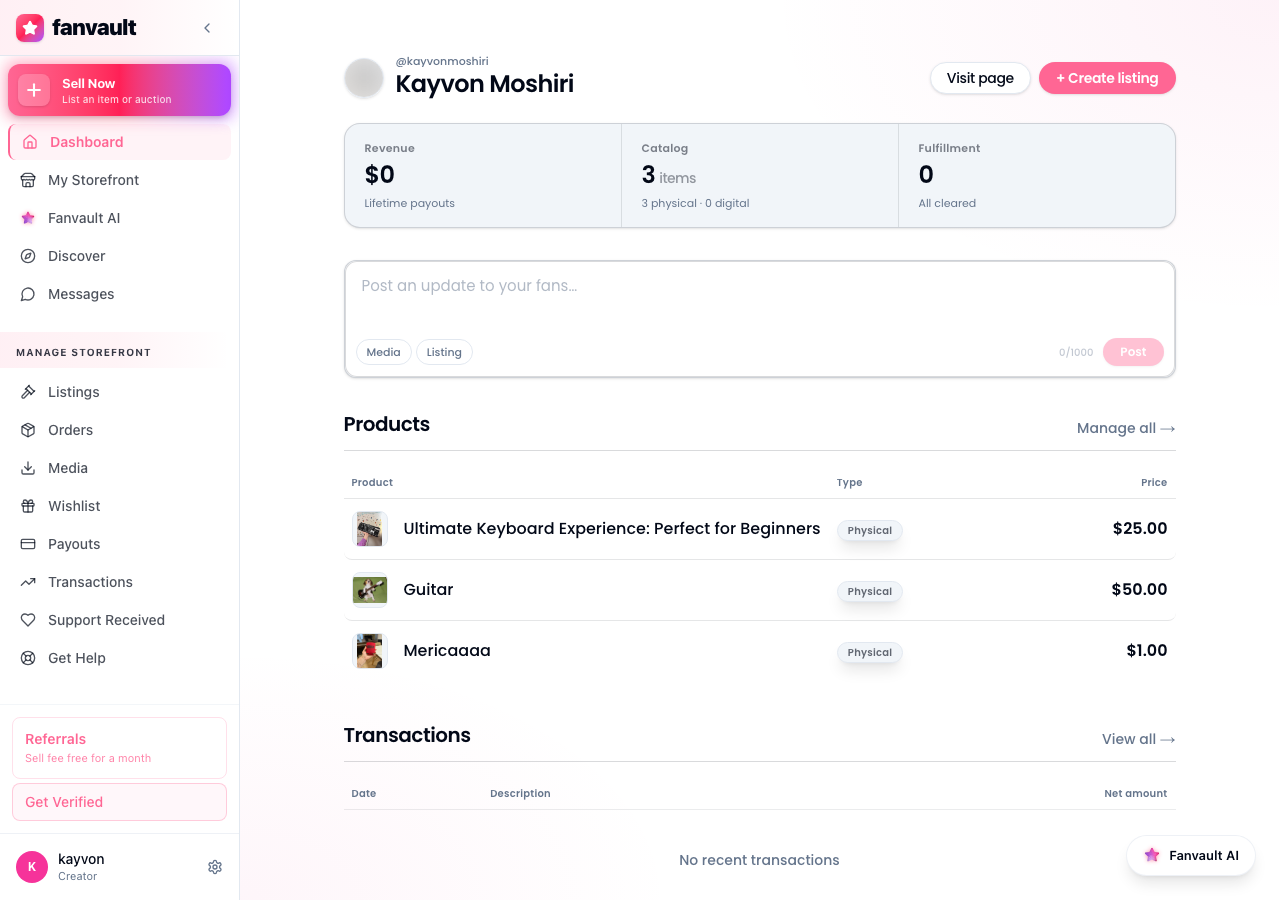
From any page on Fanvault, click your avatar in the top right and choose Dashboard. In the left sidebar under Selling, click Payouts. The hub loads in under a second and surfaces your lifetime earnings at the top, with current balance and pending payouts directly below.
What does your available balance actually show?
The top card breaks your money into three buckets: available (cleared and ready to transfer), pending (still in the Stripe holding period), and lifetime (everything you have ever earned on Fanvault, after the platform fee). Fanvault takes 8% and you keep 92% on every transaction, so the balance you see is already net of the platform fee.
If your available balance is higher than zero, your next scheduled payout will sweep that amount to your connected bank account on the next payout date.
When do pending payouts actually land?
Fanvault runs on Stripe Connect, so your payout cadence follows the schedule you chose during onboarding. Most creators are on a rolling 7-day schedule, which means revenue earned today appears in the pending column for about a week, then moves to available, then transfers to your bank within 1 to 2 business days.
Auction settlements and physical-goods sales follow the same window, but the clock starts when the buyer confirms delivery, not when they pay. That detail matters most around memorabilia drops, where a high-value item can show pending for longer than a subscription charge would.
How do you read your payout history?
Scroll past the balance cards and you will see a chronological list of every payout Fanvault has ever sent you. Each row shows the payout date, the destination bank account (last four digits), the gross revenue, the 8% Fanvault fee, and the net amount that hit your account.
Click any row to expand a per-source breakdown. Subscriptions, paid posts, paid DMs, tips, wishlist purchases, auction wins, and buy-it-now drops are each itemized so you can see which part of your storefront drove the payout.
How do you confirm your bank details are correct?
From the Payouts Dashboard, click Manage bank account in the top right. That opens your Stripe Connect dashboard in a new tab, where you can update routing, account numbers, or switch to a different payout currency if you are one of the creators in our 24-country footprint.
Changes apply to your next payout cycle, never retroactively. Update the destination before your next scheduled run if you want the money to land in the new account.
How do you reconcile payouts at tax time?
The Payouts Dashboard has a built-in CSV export at the bottom of the history table. Pick a date range (the whole calendar year for taxes, or month-to-month for bookkeeping) and download a row-per-transaction file with gross, fee, and net columns. Hand it to your accountant, drop it in Notion, or feed it into the spreadsheet you already use to run your business.
Every creator we talk to has the same anxiety when they switch platforms: did I actually get paid for that drop? On Fanvault, the answer is one click away. You see the number, you see the source, you see when it transfers, and you see 92% of every sale flow through, every time. That clarity is what turns a side hustle into a business you trust.
Frequently Asked Questions
How often does Fanvault pay out creators?
Payouts run on the Stripe Connect schedule you set during onboarding. Most creators are on a rolling 7-day cadence: revenue earned this week clears next week, then transfers to your bank within 1 to 2 business days. You can switch to a different cadence (daily, weekly, monthly) from the Stripe Connect dashboard linked at the top of the Payouts Dashboard.
What does Fanvault take from each sale?
Fanvault charges a flat 8% platform fee on every transaction. Creators keep 92%. There is no per-transaction add-on, no tiered cut, and no separate fee for storefront sales versus subscriptions. The balance shown on the Payouts Dashboard is already net of that 8%, so the number you see is the number you are getting paid.
Why is my balance showing as pending?
Pending means the funds have been collected from the buyer but are still inside the Stripe holding window. For digital sales (subscriptions, paid posts, tips) the window is typically 7 days. For physical-goods sales and auctions, the clock starts when the buyer confirms delivery, which is why high-value memorabilia drops can show pending for longer than a subscription charge.
Can I change which bank account my Fanvault payouts go to?
Yes. Click Manage bank account at the top of the Payouts Dashboard and you will land in the Stripe Connect dashboard where you can update routing, account numbers, or switch payout currency (Fanvault supports payouts in 24 countries at launch). The change applies to your next scheduled payout, not retroactively, so update before the next cycle if you want the money in the new account.
Do I get a 1099 or tax form from Fanvault?
Stripe Connect handles tax forms on Fanvault's behalf. If you are a U.S. creator who clears the IRS threshold for the year, Stripe will issue a 1099-K and notify you through the Stripe dashboard. Outside the U.S., your local tax requirements vary. The CSV export at the bottom of the Payouts Dashboard gives you every line item you need to file, regardless of jurisdiction.