The Fanvault Payouts Dashboard is the single screen creators use to see lifetime earnings, available balance, pending payouts, and a full history of money that has already landed in their bank. It pulls every revenue source on Fanvault (subscriptions, paid DMs, tips, auctions, drops, wishlist gifts) into one view so you always know what you have earned and when it hits your account. The recent overhaul groups your numbers by source and by status, the way creators actually think about cash flow.
⚡ Key Takeaways
- The Payouts Dashboard puts available balance, pending balance, and lifetime payouts on one screen, updated in real time.
- Revenue breaks down by source (subscriptions, tips, auctions, drops, paid DMs, wishlist) so you can see what is actually driving the week.
- The 8% Fanvault platform fee is already deducted from every number, what you see is what lands in your bank.
- Default payouts run weekly on Mondays; daily payouts unlock after a 30 day clean payment history.
- The History tab exports a tax-ready CSV, and Stripe issues your 1099-K through the same flow in January.
How do you open the Payouts Dashboard?
From your creator dashboard, click Payouts in the left sidebar under the Selling group. The page loads in under a second and shows your lifetime payout total at the very top so you can see the headline number before you read anything else.
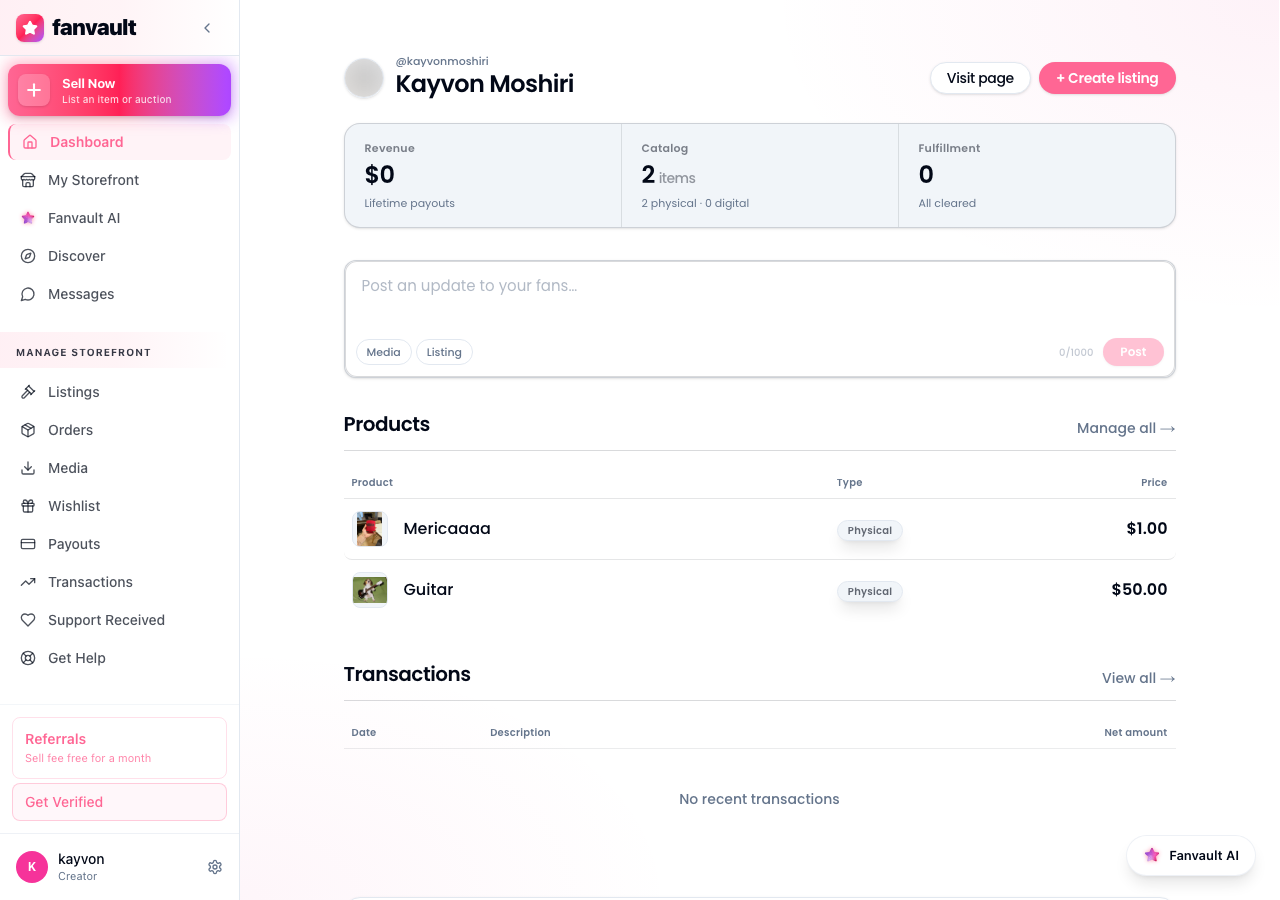
If you do not see Payouts yet, you are likely still in onboarding. Finish Stripe Connect verification first and the link appears automatically in the sidebar.
What do the three balance numbers mean?
The top of the page shows three numbers, and they update in real time as fans buy, tip, or win auctions.
- Available balance, money cleared by Stripe and ready to send to your bank on the next payout.
- Pending balance, money earned in the last few days that Stripe is still settling. Usually clears in 2 to 7 days.
- Lifetime payouts, the total amount Fanvault has ever sent to your bank account.
Knowing the difference between available and pending is the single most useful thing this page does. It tells you how much cash is actually yours to spend versus how much is still in flight.
How do you see where the money came from?
Below the headline numbers, the dashboard breaks revenue down by source. You see subscriptions, paid posts, tips, paid DMs, auctions, drops, and wishlist gifts side by side. Each row shows the last 30 days and a sparkline so you can spot which products are climbing and which are cooling off.
This is the view to study after a launch. If you ran an auction last weekend, the auctions row should spike. If you posted a paywalled video on Tuesday, paid posts should jump. The breakdown turns the abstract "I made some money this week" feeling into a concrete read on what is working.
When does Fanvault send the money to your bank?
Fanvault pays out on a weekly schedule by default, every Monday for funds cleared the prior week. You can flip to daily payouts once your account has a 30 day clean payment history. The next payout date is right under the available balance, so you never have to guess.
The 8% platform fee is already deducted from every number you see. There is no surprise math at payout time. What the dashboard shows you is what hits your bank.
Where do you review your payout history?
Click the History tab and you get a full ledger of every payout Fanvault has ever sent. Each row lists the date, the gross amount, the platform fee, the net deposit, and the Stripe payout ID. Click any row to expand a per-source breakdown of that specific payout.
This is the page to bookmark for accounting. Your bookkeeper can pull a clean CSV from here without ever needing to log into Stripe.
How do you keep your payout details current?
From the dashboard, click Payout settings in the top right. That opens your Stripe Connect account, where you can swap the destination bank, add a debit card for instant payouts, or update your tax information. Changes go live immediately.
If you ever change banks, do this before your next payout date. Stripe will not retry a failed transfer; it will hold the funds for you to fix the destination first.
Can you export earnings for taxes?
Yes. The Export button at the top of the History tab gives you a CSV of every payout, broken down by source and by month, for any date range you pick. Most creators export quarterly to make estimated taxes easier and then pull a full year in January.
Fanvault also issues a 1099-K through Stripe if your US earnings cross the federal threshold. You will see it in the Documents section of payout settings as soon as it is ready.
The point of the Payouts Dashboard is to take cash flow off your worry list. When you can see exactly what you have earned, what is still settling, and when it lands in your bank, you can plan the next drop, the next auction, the next collab with real confidence instead of guessing. That is the real unlock. On Fanvault, the money math runs itself so you can keep building.
Frequently Asked Questions
How long does it take for earnings to move from pending to available?
Stripe usually settles between 2 and 7 days, depending on the payment method. Card transactions clear fastest. Tips and subscription renewals from older fans almost always clear in 2 days; first-time payment methods can sit in pending for the full week while Stripe runs its risk checks. Once funds are in available balance, they are released on your next scheduled payout. Nothing else is required on your end.
What is the difference between available balance and pending balance?
Available balance is money Stripe has fully cleared. It is yours to send to your bank on the next payout. Pending balance is money you have earned but Stripe is still settling. Both numbers count toward your lifetime earnings, but only the available balance is what you can actually receive in your next payout run. The dashboard separates them so you can plan around real cash, not cash in flight.
Can I switch to daily payouts instead of weekly?
Yes, after your Fanvault account has a clean 30 day payment history with no chargebacks or disputes. Open Payout settings, go to the schedule section, and pick daily. Most creators stay on weekly because the slightly larger weekly deposit is easier to track. High-volume drop and auction creators often flip to daily to keep cash moving, especially around big release weekends.
Where does the 8% Fanvault fee show up in my dashboard?
Every number you see in the Payouts Dashboard is already net of the 8% platform fee. That includes available balance, pending balance, payout history, and the per-source breakdown. If you need to see gross revenue (before fees) for accounting, open any line in the History tab. The expanded view shows both gross and net side by side, plus the Stripe processing line so your books reconcile cleanly.