The Fanvault Creator Payouts Hub is the dashboard where creators view their available balance, see a full history of sales and tips, and request payouts straight to their bank. It replaces the old habit of guessing what you earned this week, exporting CSVs, or pinging support to confirm a number. Open the hub, see your real balance, cash out. That is the whole loop.
⚡ Key Takeaways
- The Creator Payouts Hub is Fanvault's one screen for tracking earnings and moving money to your bank.
- You keep 92% of every transaction. The 8% Fanvault fee is the only platform cut, with no per-payout surcharge.
- Revenue breaks down by source (auctions, drops, subscriptions, paid DMs, tips, wishlists) so you can see what is actually working.
- Request a payout in two clicks. Funds land via Stripe Connect in 1 to 2 business days.
- Filterable transaction ledger plus one-click CSV export keeps taxes and reconciliation painless.
Fanvault keeps 92% of every transaction in your pocket (the platform fee is a flat 8%), so the number you see in the hub is the number you can actually move. No surprise deductions later, no per-payout fee tacked on after the fact.
Where do you find the Payouts Hub?
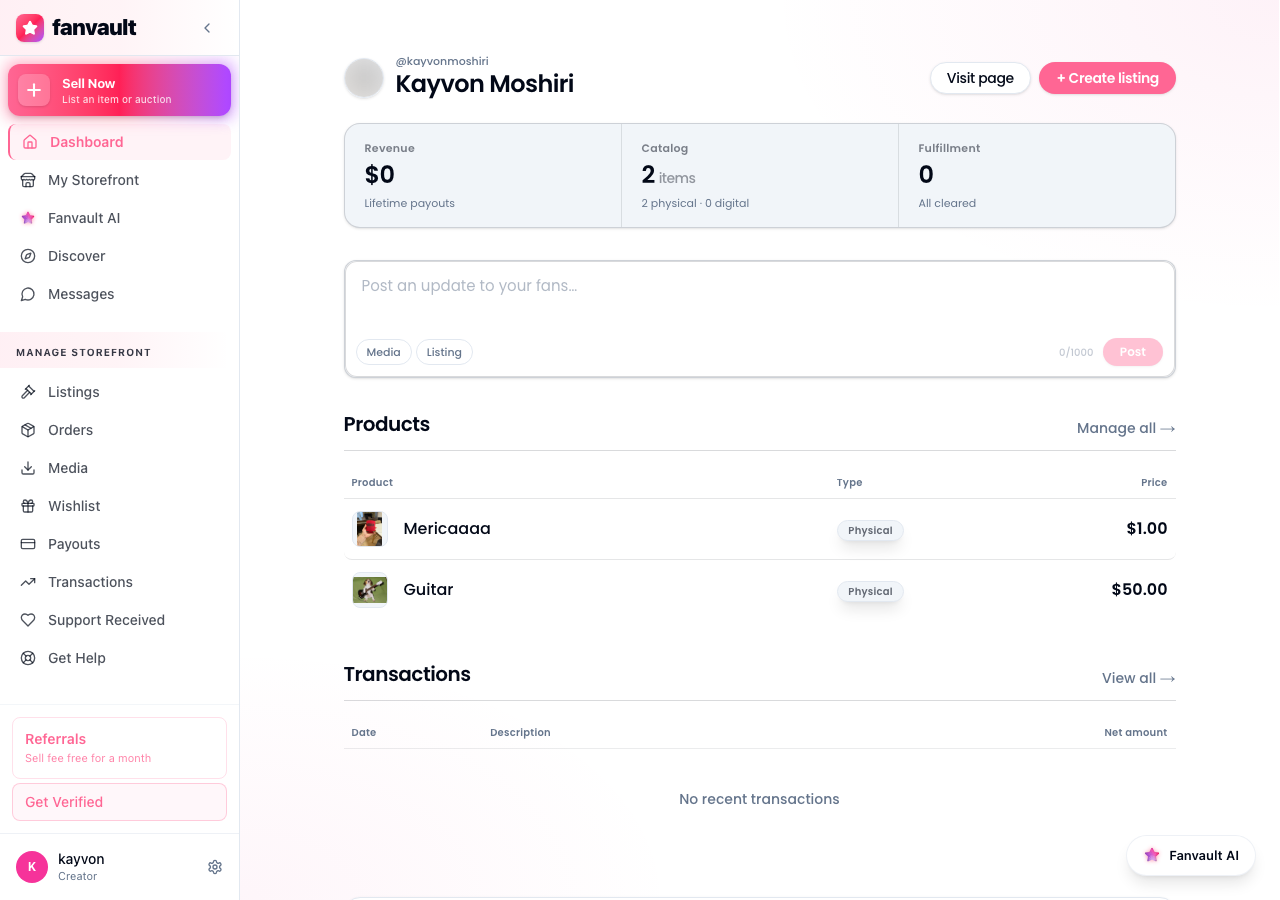
From your Fanvault creator dashboard, open the left sidebar and click Payouts under the Selling section. The hub loads in about a second. The first thing you see at the top is your lifetime payout total, then your current available balance, then a pending column for sales that are still in the standard Stripe Connect settlement window.
If you are on mobile, the same screen lives under the dashboard menu. Everything you can do on desktop you can do on your phone, including requesting a payout.
What does the overview screen actually show?
Three numbers anchor the top of the hub: available now, pending, and lifetime earnings. Below that, Fanvault breaks your revenue down by source so you can see exactly where the money came from this week.
- Auctions, including final hammer price minus the 8% fee
- Buy-it-now drops, including multi-quantity releases
- Subscriptions and paywalled posts
- Paid DMs and custom requests
- Tips and wishlist contributions
Each row is clickable. Tap any source and you get the underlying transactions, with buyer handles, timestamps, and the net you kept.
How do you read the transaction history?
Scroll past the overview and you land on the full ledger. Every sale, tip, and payout appears as its own line with a timestamp, the gross amount, the 8% Fanvault fee, and the net deposited to your balance. You can filter by date range, by revenue source, or by status (pending, available, paid out).
If you need the data outside Fanvault for taxes or your accountant, the export button at the top right downloads a clean CSV of any filtered view. Most creators pull a monthly export, drop it in a folder, and forget about it until tax season.
How do you actually request a payout?
Hit the Request payout button at the top of the hub. A panel slides out with your available balance pre-filled. You can take the full amount or type in a partial number, then confirm. Fanvault routes the request through Stripe Connect to the bank account you verified at onboarding, and the funds typically land in 1 to 2 business days depending on your bank.
You do not need to do anything special for taxes here. Stripe Connect already collected your tax info during onboarding, so 1099s and equivalent international forms generate automatically at year end.
What if something looks off?
Every line in the ledger is auditable. Click into any transaction and you see the original order, the buyer, the item or post that produced it, and the exact fee breakdown. If a number does not match what you expected, that detail view almost always answers the question (refunded order, chargeback in progress, tip attributed to a different post).
If it still does not add up, the contact support link sits right inside the hub. Support sees the same data you do, so the back and forth is short.
What does this unlock for you as a creator?
The Payouts Hub turns earnings into something you can actually steer. You can see which auction or drop produced your best week, double down on the format that is working, and stop running your business off vibes and screenshots. And because Fanvault stacks the storefront, subscriptions, paid DMs, tips, and wishlists into one balance, you cash out one number instead of reconciling five.
Frequently Asked Questions
How much does Fanvault take from each payout?
Fanvault charges a flat 8% platform fee on each transaction. Creators keep 92%. There is no separate per-payout fee on top of that. The balance you see in the Payouts Hub is the amount you can actually move to your bank.
How fast do payouts arrive?
Once you click Request payout, Fanvault submits the transfer to Stripe Connect, which routes it to the bank account you verified at onboarding. Most creators see funds land in 1 to 2 business days, though the exact timing depends on your bank and country. Fanvault supports 24 countries at launch.
Can I see which products or posts are making me the most money?
Yes. The overview screen breaks your earnings down by source (auctions, buy-it-now drops, subscriptions, paywalled posts, paid DMs, tips, and wishlists). Clicking any source opens the underlying transactions, so you can see exactly which auction, drop, or post produced which deposit. Most creators use this to decide where to lean in for the next week.
Do I need to handle taxes myself?
Fanvault uses Stripe Connect for payments, and Stripe collects your tax information during creator onboarding. At year end, the relevant tax forms (1099-K in the US, equivalent forms internationally) generate automatically based on your payout activity. The Payouts Hub also has a one-click CSV export of your ledger so you or your accountant can reconcile any month in seconds.
What if a number in my balance looks wrong?
Every line in the transaction ledger is auditable. Click into the entry to see the original order, the buyer, the item or post that produced it, and the exact fee breakdown. Most discrepancies trace back to a refunded order, a chargeback in progress, or a tip attributed to a different post. If it still does not match, the contact support link inside the hub sends Fanvault support the same view you are looking at, so the resolution is usually a single back and forth.