The Fanvault Creator payouts dashboard is the single hub where you track lifetime earnings, pending balances, paid history, and per-source revenue across auctions, drops, tips, paid DMs, and wishlist sales. It is built around the 92% creator share (Fanvault keeps 8%), so every number you see is what actually arrives in your Stripe account. This guide walks you through opening the dashboard, reading the balances, and confirming where your payouts are headed in under five minutes.
⚡ Key Takeaways
- The Fanvault Creator payouts dashboard tracks lifetime earnings, pending and paid balances, and per-source revenue from one screen.
- Every number is shown net of the 8% Fanvault fee, so what you see is the 92% that actually lands in your bank.
- Per-source rows split auctions, drops, tips, paid DMs, memberships, and wishlist fulfillment.
- The History tab and CSV export make tax time and manager reporting painless.
- Banking changes route through Stripe Express; Fanvault support never edits payout accounts directly.
Where do you find the payouts dashboard?
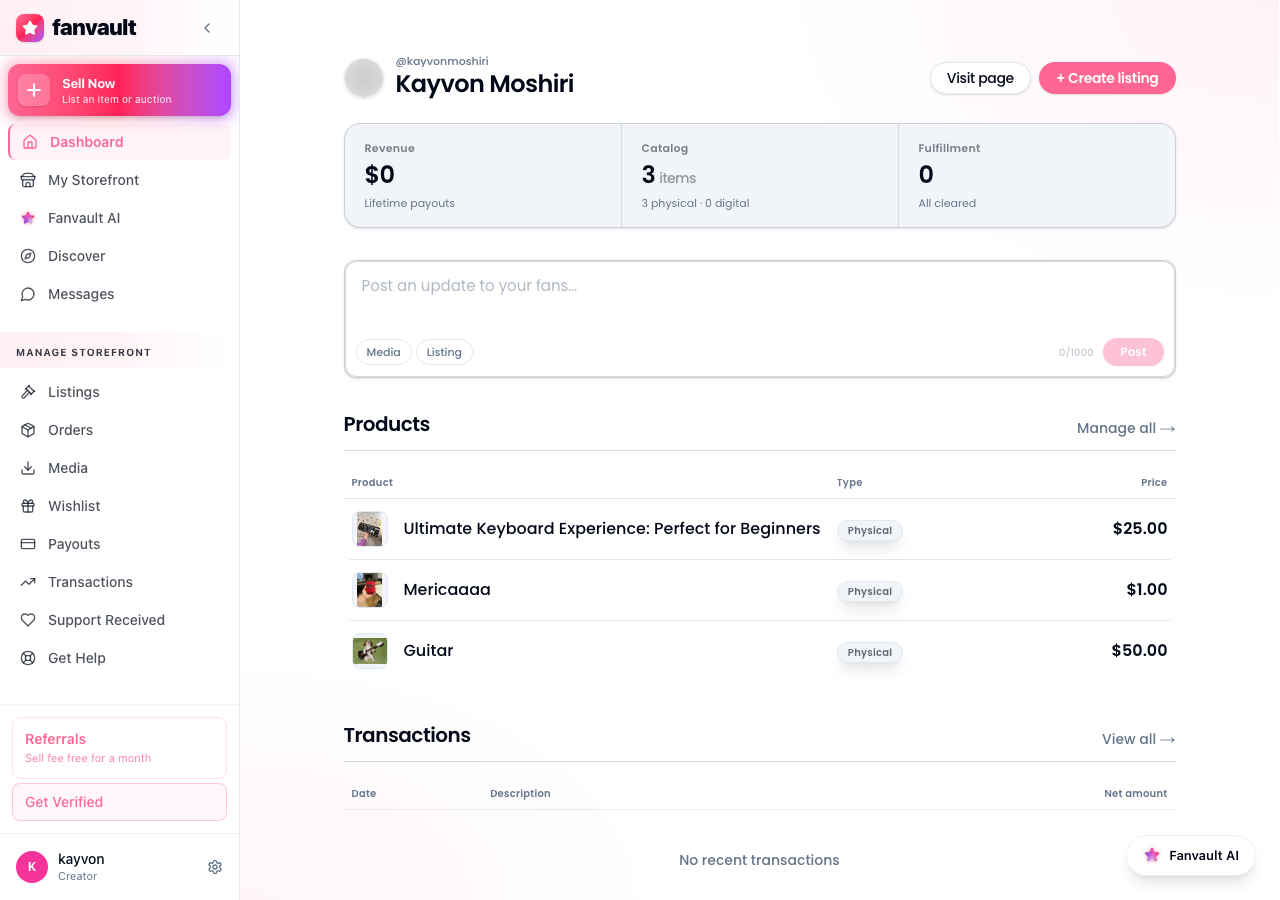
From your creator dashboard, open the sidebar and click Payouts under the Selling section. The hub loads instantly and puts your lifetime payout total at the top, with pending and paid balances broken out underneath.
If you are coming from a competitor platform, the muscle memory is similar to a Stripe Express view, but the Fanvault version layers in the per-source breakdown so you can see whether your auctions, drops, or tips are pulling the most weight.
What do the pending and paid balances actually mean?
The Pending balance is money that has cleared the buyer's payment but is still in the Stripe Connect holding window before it lands in your bank account. The Paid balance is the lifetime total that has already been transferred. Both are shown net of the 8% Fanvault fee, so you never have to do the math in your head.
Most payouts move on a rolling daily schedule once you have cleared identity verification, with longer holds only on first transactions or flagged orders.
How do you read the per-source revenue breakdown?
Underneath the headline balances, the dashboard splits your earnings by source. You will see one row each for auctions, buy-it-now drops, tipped posts, paid DMs and custom requests, tiered memberships, and wishlist fulfillment. Each row shows gross sales, the Fanvault fee, and your net 92%.
- Auctions and drops are usually the highest dollar-value lines for memorabilia-heavy creators.
- Tips and paid DMs tend to be the most frequent transactions for streamers and fitness creators.
- Wishlist fulfillment is a Fanvault-only line that no other competitor surfaces.
How do you review your payout history?
Click the History tab inside the payouts hub to see every transfer that has gone out. Each row shows the date, the destination account, the total amount, and a deep link into Stripe for the underlying transfer ID. You can filter by date range or by source, which is helpful at tax time.
Export to CSV from the top right when you need to hand a record to your accountant or your manager.
How do you confirm where your money is going?
At the top of the dashboard, the destination card shows the last four digits of the bank account currently receiving your payouts, along with your verification status. If anything looks off, click Manage payout account to jump straight into Stripe Express, where you can update bank details, tax info, or your legal entity.
This is the only place to make banking changes. Fanvault never asks for account numbers over DM or email, and the support team cannot edit them on your behalf.
What should you do if something looks off?
If a balance looks lower than expected, start by checking the per-source breakdown for refunds or chargebacks, which subtract from the source row in the same period. If a payout is overdue, the destination card will show a yellow status flag with the reason, usually a Stripe verification step you can resolve in a couple of clicks.
For anything you cannot self-serve, the Telegram support concierge is wired into the same data, so you can ask about a specific transfer ID and get a real answer instead of a templated reply.
What does this unlock for you as a creator?
Knowing exactly what you earned, what is on the way, and where it is going is the difference between guessing about your business and running it. With the Fanvault payouts dashboard, you keep 92% of every sale, you see it broken down by the revenue line that actually drives your week, and you can reinvest in the drops, tiers, or content that are working without waiting on a monthly statement.
Frequently Asked Questions
How often does Fanvault pay out creators?
Once your Stripe Connect identity verification is complete, payouts move on a rolling daily schedule. The Pending balance on the dashboard reflects funds that are inside the Stripe holding window before the daily transfer fires. First-time transactions and any orders flagged by AI moderation can extend the hold, in which case the destination card on the dashboard will surface the reason and the next action.
Does the dashboard show my earnings before or after the Fanvault fee?
Every balance and per-source row on the dashboard is net of the 8% Fanvault platform fee, which means the numbers represent your 92% creator share. If you want to see the gross sale value alongside the fee and the net, expand any row in the per-source breakdown. That detail view is the one place the gross number appears, and it is also what flows into the CSV export for your accountant.
Can I see auction, drop, and tip earnings separately?
Yes. The per-source breakdown gives auctions, buy-it-now drops, tips, paid DMs and custom requests, tiered memberships, and wishlist fulfillment their own rows. This is a deliberate Fanvault choice. The competing platforms (Fanvue, Passes, Fanfix) lump everything into a single subscription-style payout view, so creators cannot tell whether their auctions or their tips are pulling more weight without rebuilding the math in a spreadsheet.
How do I update the bank account that receives my Fanvault payouts?
Click Manage payout account on the destination card at the top of the payouts dashboard. That link drops you into Stripe Express, which is where all banking, tax, and legal entity details live. Fanvault never collects bank details over DM, email, or Telegram, and the support team cannot change a payout destination on your behalf. If you ever get a message claiming otherwise, treat it as a phishing attempt and report it through the in-app support channel.
What if a payout looks wrong or is delayed?
Start with the per-source breakdown for the period in question. Refunds and chargebacks subtract from the source row that generated them, so a smaller-than-expected balance often traces back to a single line item. If the destination card shows a yellow status flag, the message will tell you exactly which Stripe step (identity, tax form, bank verification) is blocking the transfer. For anything you cannot self-serve, the Telegram support concierge is wired into the same transfer data and can look up a specific transfer ID for you.