Fanvault Creator Payouts Hub is the dashboard inside every creator account that shows your lifetime earnings, pending balance, completed payouts, and per-sale breakdowns in one place. It pulls revenue from every Fanvault surface (auctions, buy-it-now drops, tipping, paid DMs, wishlists, subscriptions) into one ledger so you never stitch numbers together across tabs. Here is how to find it, read it, and use it to actually run your creator business.
⚡ Key Takeaways
- Fanvault Creator Payouts Hub centralizes lifetime earnings, pending balance, and per-sale breakdowns in one creator-only dashboard.
- Every row shows your 92% take-home after Fanvault's flat 8% platform fee, with the math itemized inline.
- Filter by source (auctions, drops, tips, paid DMs, wishlists, subscriptions) and date range in two clicks.
- The sale detail drawer reveals gross, fees, shipping cost, and net for every transaction, with bid history on auctions.
- Export a tax-ready CSV that honors your active filters and reconciles line for line with your Stripe Connect dashboard.
How do you get to the Creator Payouts Hub?
From your Fanvault dashboard, click Payouts in the left sidebar under Selling. The hub loads in under a second and lands on the overview tab, where your lifetime payout total sits at the top. If you are on mobile, the same link lives inside the bottom-sheet menu under Earnings. The page is creator-only and never visible to fans, even on your public profile.
What does the overview tile show?
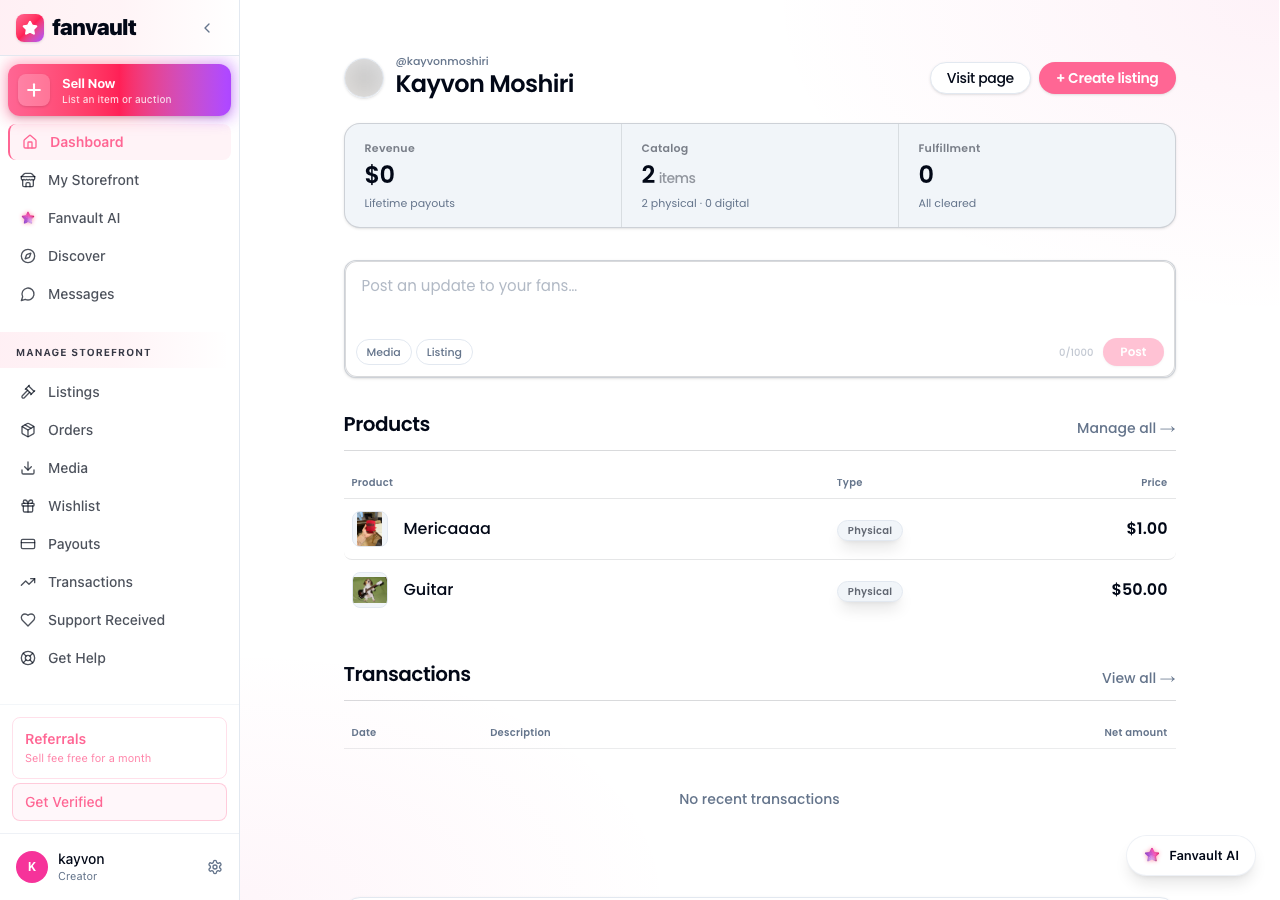
The top of the hub displays three running totals: lifetime earnings, pending balance, and next scheduled payout. Lifetime earnings is your gross revenue across every Fanvault surface combined since the day you onboarded. Pending is what has cleared the buyer-protection window but has not yet hit your bank. Next payout is the amount Stripe Connect will release on your cadence (weekly by default, configurable to monthly in account settings).
How do you check pending versus available balance?
Click the Pending tile to expand a side panel that lists every sale currently in the buyer-protection window. Each row shows the buyer's username, the item, the sale date, and the projected release date. 92% of each sale shows up here because Fanvault charges a flat 8% platform fee, and you see that take-home figure on every line.
Where do completed payouts live?
The Payouts tab lists every transfer Fanvault has sent to your bank, newest first. Each row carries the date, the amount, the Stripe transfer ID, and a status pill (paid, in transit, or failed). Click any row to see the underlying sales that funded that specific payout. This is the trail you want at tax time, and it matches your Stripe Connect dashboard line for line.
How is this different from checking your Stripe dashboard?
Stripe shows you transfers. The Fanvault hub shows you the story behind each transfer. Per-sale fee math, source attribution, and tax-ready filters are all built in instead of pieced together by hand.
| What you need | Fanvault Payouts Hub | Manual tracking |
|---|---|---|
| Lifetime earnings at a glance | One click | Multiple tabs and a spreadsheet |
| Per-sale fee breakdown | Inline on every row | Stripe receipts plus manual math |
| Filter by revenue source | Built-in filters | Build it yourself |
| Tax-ready export | CSV in two clicks | Manual export and reconcile |
Can you drill into a single sale?
From either the Pending or Payouts tab, click any row to open the sale detail drawer. You see the gross sale price, the 8% Fanvault platform fee, the Stripe processing fee, any shipping label cost (for physical drops), and your net take-home. For auctions, the drawer also shows the bid history and the winning bidder's username. For tips and paid DMs, it links back to the message thread that produced the sale.
How do you filter by revenue source?
Above the pending and payouts tables, a filter row lets you isolate revenue by source: auctions, buy-it-now drops, tips, paid DMs, wishlists, or subscriptions. Stack filters with the date range picker to answer questions like "how much did I make on auctions in May?" in two clicks. The export button respects whatever filter set you have active.
How do you export your records for taxes?
Click Export in the top right of the hub. You can download a CSV of pending sales, completed payouts, or both, scoped to the date range and source filters you set. Most creators run a monthly export and hand it to their accountant, or pipe it into a spreadsheet to track which revenue surfaces are pulling the most weight that quarter.
What does the hub unlock for your creator business?
Knowing where your money stands turns Fanvault from a place where you post content into a business you can run. You stop guessing whether the latest signed-jersey auction outperformed last month's wishlist drop, because the hub answers in one glance. You stop dreading tax season, because every transfer is itemized and reconcilable. And because Fanvault keeps 92% of every sale flowing back to you, every minute you spend in the hub is a minute spent on revenue that is actually yours.
Frequently Asked Questions
How often does Fanvault pay out?
Weekly by default via Stripe Connect. You can switch to monthly in your account settings if you prefer larger, less frequent transfers. The Next Payout tile at the top of the hub always shows the upcoming amount and release date so there is no guessing.
What is Fanvault's platform fee?
A flat 8% per transaction. You keep 92% of every sale across auctions, buy-it-now drops, tips, paid DMs, wishlists, and subscriptions. There are no tiers, no surcharges, and no per-transaction extra cents on top. The fee is shown on every row in the Payouts Hub so you can verify the math yourself.
Why is some revenue marked as pending?
Sales clear a short buyer-protection window before the funds release into your available balance. The hub shows the projected release date on every pending row so you can see exactly when each sale becomes spendable. Auctions, drops, and tips all use the same window, with shipping-bound physical drops releasing once tracking confirms delivery.
Can I export my payout history for taxes?
Yes. Click Export in the top right of the hub to download a CSV scoped to your active filters and date range. Most creators run one export per month for their accountant. The export includes gross, Fanvault fee, Stripe fee, shipping cost, net, and source for every line, which is everything a 1099 reconciliation needs.
Does the hub include tip and paid-DM revenue?
Yes. Every Fanvault revenue surface (auctions, buy-it-now drops, tips, paid DMs, wishlists, subscriptions) flows into the same hub. The filter row lets you isolate any single source or stack several at once, so you can see how much your DM monetization contributed last quarter without leaving the page.