Fanvault Payouts Dashboard is the single screen creators use to see gross sales, the 8% platform fee Fanvault takes, and the net payout balance ready to cash out. It pulls revenue from every Fanvault surface (paywalled posts, auctions, buy-it-now drops, tips, paid DMs, and wishlists) and shows the math in plain numbers. This walkthrough covers reading the dashboard, understanding the fee, and requesting your first payout from start to finish.
⚡ Key Takeaways
- The Payouts Dashboard shows lifetime earnings, per-source revenue, and your cash-out balance on one screen.
- Fanvault takes a flat 8%, you keep 92%, and the dashboard prints the math line by line on every sale.
- Revenue from paywalled posts, auctions, buy-it-now drops, tips, paid DMs, and wishlists all roll up here.
- Pending versus available balance is split out, so you never confuse a fresh sale with cash you can move today.
- Payouts ride Stripe Connect and update live with Initiated, In Transit, or Paid status badges.
What does the Payouts Dashboard show at a glance?
The dashboard opens on a clean overview screen. You see lifetime earnings at the top, a breakdown by revenue source in the middle, and a payout-ready balance card on the right. Every number is live, so a tip that lands during a Telegram session shows on the dashboard within seconds.
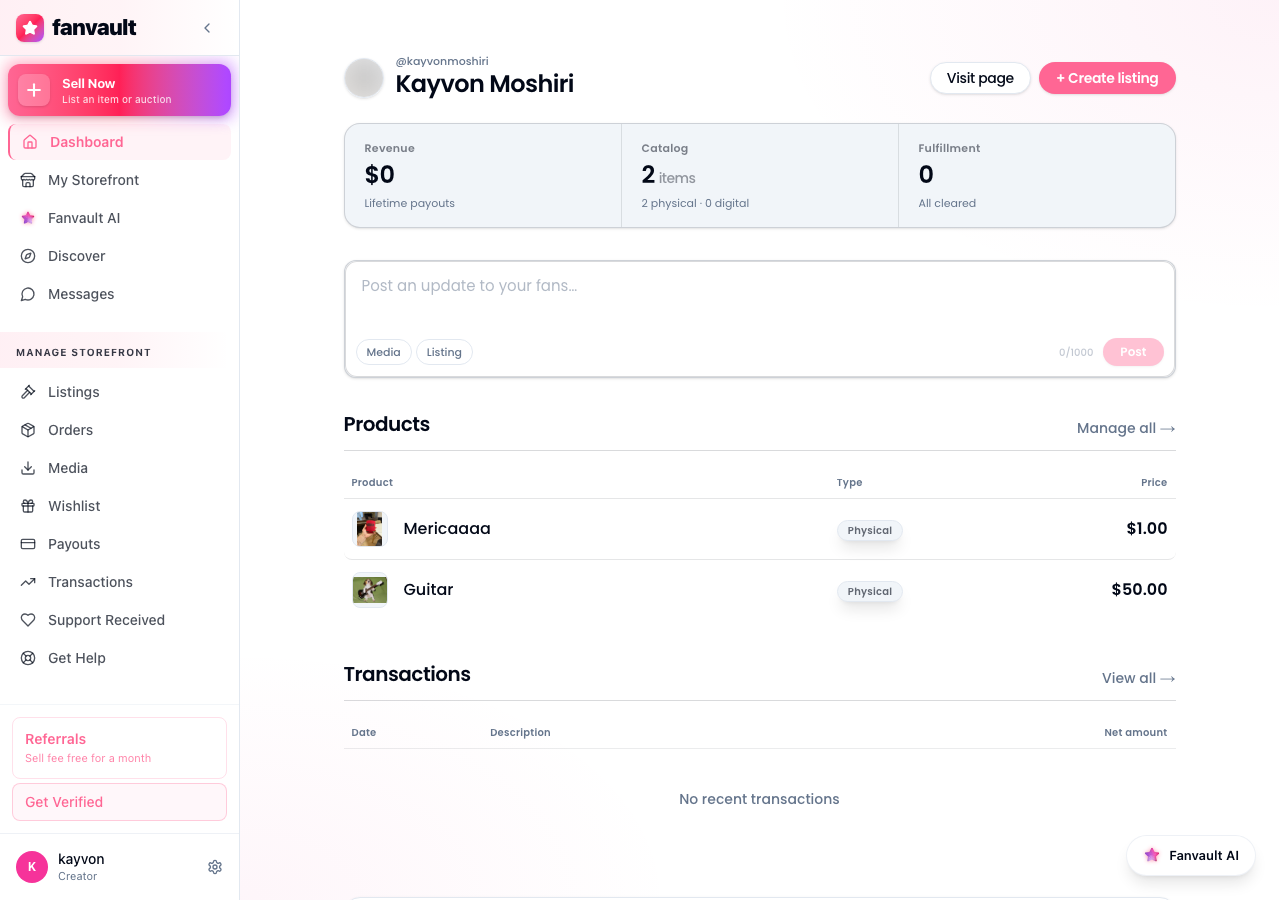
The view is built so a creator can answer three questions in five seconds: how much have I made, what is ready to cash out, and where is the money coming from. That is the whole point of the page.
How do you open the dashboard?
From any screen in your Fanvault account, open the left sidebar and click Selling, then Payouts. The hub loads in under a second. If you are on mobile, tap the menu icon, scroll to Selling, and pick Payouts from the dropdown. The mobile and desktop views show identical numbers, so you can check on the go without worrying about a stale figure.
How do you read each revenue source?
Below the lifetime total, every Fanvault revenue surface gets its own row: paywalled posts, auctions, buy-it-now drops, tips, paid DMs, and wishlists. Each row shows gross sales, units sold, and the share of your total for the month. This is how you see which surface is actually working for your audience.
For most creators the breakdown is uneven, and that is useful. If auctions are quietly carrying 60% of your revenue, you know what to list next.
How is the 8% platform fee calculated?
Fanvault charges a flat 8% platform fee on every transaction, and you keep 92%. The dashboard shows the math line by line, so a $100 sale renders as $100 gross, $8 fee, $92 net. There are no tiered rates, no hidden processing add-ons stacked on top, and no per-transaction surcharge.
The comparison table on the page makes it concrete:
| Platform | Fanvault | Fanvue | Passes | Fanfix |
|---|---|---|---|---|
| Platform fee | 8% | 15% | 10% + $0.30 | ~20% |
| On a $100 sale | $92 to you | $85 | $89.70 | ~$80 |
What is the difference between pending and available?
Pending balance is revenue that has cleared Stripe but is still inside the standard payment-network hold window. Available balance is what you can transfer to your bank today. The dashboard always shows both, side by side, so you never confuse a sale that just happened with cash you can actually move.
How do you request a payout?
When your available balance crosses the minimum payout threshold, the Request Payout button turns active. Click it, confirm the amount, and pick your connected bank account. Fanvault uses Stripe Connect under the hood, so the transfer rides the same rails Stripe uses for every other Connect payout you have ever received.
The request shows up on the dashboard immediately with a status badge: Initiated, In Transit, or Paid. You do not have to open Stripe to track it. Everything lives in one place.
What does the new dashboard unlock for creators?
For the first time you can see the entire Fanvault monetization stack on one screen, with the fee math spelled out and the cash-out flow one click away. Less time piecing together what a tip earned versus a drop, more time spent on the surfaces that are actually working. The Payouts Dashboard turns Fanvault from a place you list things into a place you run a business.
Frequently Asked Questions
What is the minimum payout threshold on Fanvault?
Your minimum payout amount is set at the account level during onboarding and reflects the rules of your Stripe Connect account in your country. The Payouts Dashboard surfaces it next to the Request Payout button, so you always see the exact dollar figure you need to cross before the button activates. Most creators in the 24-country launch footprint sit at a low double-digit minimum, but check the dashboard for your specific number.
How often can I request a payout?
As often as you cross the minimum. There is no weekly or monthly cap from Fanvault. The practical limit is how quickly your pending balance clears Stripe's standard hold window and lands in your available balance. Once it is available, you can pull it any day.
Does the 8% platform fee include payment processing?
The 8% is Fanvault's platform fee. Stripe's standard payment-processing fee for card transactions is separate and is taken by Stripe directly on each charge, the same way it works on any Stripe Connect platform. The dashboard splits both out on every transaction, so you can see Fanvault's 8%, Stripe's processing, and your net in one row.
Why does my pending balance differ from my Stripe dashboard?
Stripe and Fanvault sometimes show numbers a few minutes apart because Fanvault's dashboard reflects the sale the instant the charge succeeds, while Stripe's pending balance updates after its own internal settlement steps. They reconcile within the hour. If a difference persists past a day, contact creator support so the team can check your Connect account directly.
Can I see earnings from a single auction or drop?
Yes. Click any source row on the dashboard (auctions, drops, wishlists, tips) and the panel expands into a per-listing view. You can see each auction's final hammer price, each drop's units sold, and the 8% fee applied to each one. This is the fastest way to figure out which formats are actually working for your audience.