Fanvault AI Side Panel is a chat-based assistant that lives inside every dashboard page and helps creators build listings, manage digital products and wishlists, and convert videos into bulk draft listings without leaving the screen they're already on. Instead of clicking through five menus to publish a drop, you ask the assistant, it does the work, and you keep your momentum.
⚡ Key Takeaways
- The Fanvault AI Side Panel is a chat assistant inside every dashboard page that drafts listings, manages digital products and wishlists, and turns videos into bulk drafts.
- Open it from the right rail on any page; it carries context from the page you're on (auctions, drops, wishlists).
- Specific prompts like "list a signed jersey, reserve $400, 7 days" return a structured draft you can review and publish in one click.
- The video-to-bulk-draft flow converts a single upload into one draft listing per item, collapsing hours of work.
- Nothing publishes until you confirm, every output is a draft you can edit first.
- It's the practical version of Fanvault's conversational automation layer, paired with an 8% platform fee so creators keep 92%.
This guide walks through how to open the side panel, the kinds of tasks it handles well, and a few prompts that get you a publishable draft on the first try.
Where do you find the AI Side Panel?
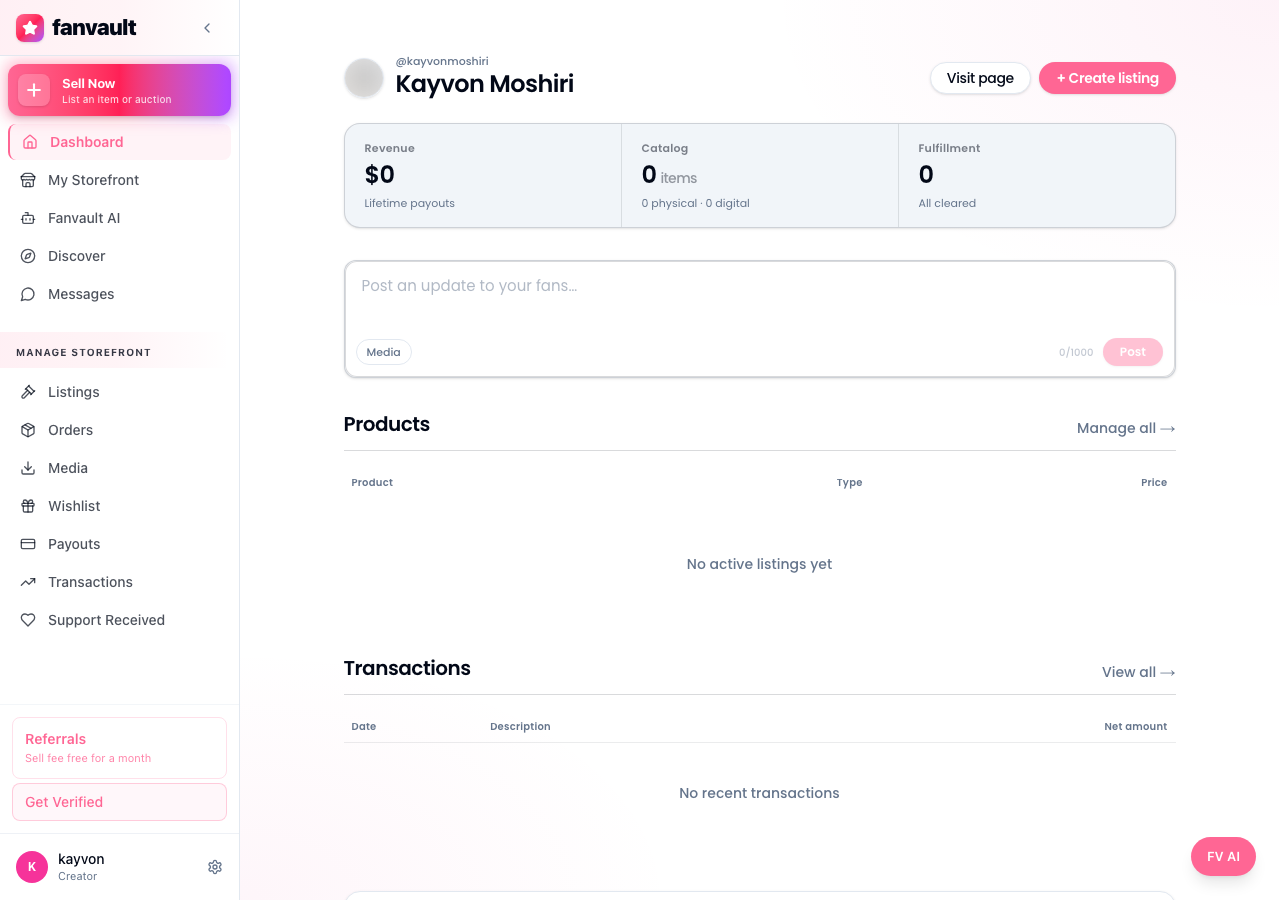
The side panel is built into the creator dashboard, so you don't install anything or switch tabs. From any page (auctions, drops, wishlists, profile settings), the assistant is one click away in the right rail. It carries context from the page you're on, so if you open it from the auctions screen, it already knows you're probably about to list an auction.
How do you create a listing by chatting?
Open the panel, tell the assistant what you want to sell, and answer the follow-ups. A prompt like "list a signed match-worn jersey, reserve $400, 7-day auction" is enough to get back a structured draft with title, description, reserve, duration, and category pre-filled. You review, tweak any field, and publish.
The assistant pulls from your existing brand voice and past listings, so the copy sounds like you, not like a generic template. If you're missing photos or provenance details, it asks before drafting anything that would publish incomplete.
Can it handle auctions and buy-it-now drops?
Yes. From the auctions page, the side panel can spin up an auction with proxy bidding, a reserve price, and an anti-snipe window in one pass. For limited drops or multi-quantity releases, switch to drops and ask for a buy-it-now with the inventory count you want.
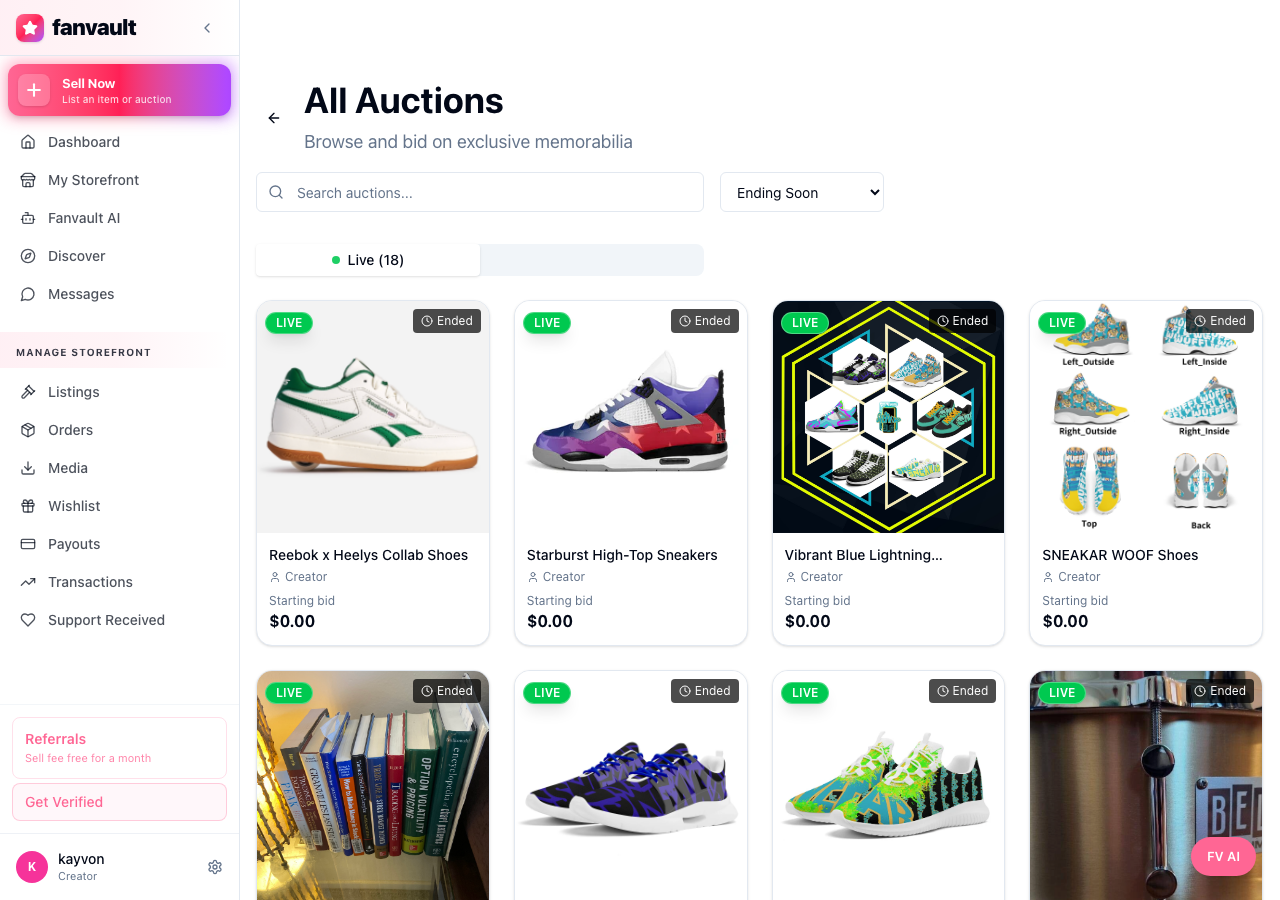
Every draft the assistant produces is a draft, never a live listing. Nothing publishes until you hit confirm, which means you can iterate on copy and pricing in the panel without worrying about pushing something half-finished to your storefront.
How does the video-to-bulk-draft flow work?
This is the time-saver. Upload a video (a haul, a behind-the-scenes clip, a sizzle reel of your memorabilia case) and ask the assistant to turn it into bulk draft listings. It identifies the items, drafts a title and description for each, and queues them up as drafts in your dashboard. You batch-edit, set prices, and publish the ones you want.
For creators sitting on a backlog of inventory, this collapses an afternoon of listing work into a single chat thread.
What about digital products and wishlists?
Same panel, different intents. Ask it to add a digital product (a PDF, a preset pack, a paywalled video) and it walks you through pricing, file upload, and access rules. Ask it to update your wishlist and it adds, reorders, or removes items, useful because wishlists are something no other named competitor offers and they tend to convert tip-curious fans into buyers.
What's a good first prompt to try?
Open the side panel on the dashboard overview and type something specific to one thing you've been putting off. Examples that work well on the first try:
- "Create an auction for the signed glove in my last drop video, reserve $250, 5 days."
- "Add three new wishlist items: ring lights, a Sony ZV-1, and a green-screen kit."
- "Turn the unboxing video I uploaded yesterday into draft listings, one per item."
Specific prompts get specific drafts. Vague prompts get follow-up questions, which is fine but slower.
What does this unlock for you?
The side panel is the practical version of Fanvault's conversational automation layer. You spend less time clicking through forms and more time on the parts of the business only you can do (talking to fans, sourcing memorabilia, planning the next drop). Combined with Fanvault's 8% platform fee, the storefront effectively runs itself while you keep 92% of what it earns.
Frequently Asked Questions
Do I need to install anything to use the AI Side Panel?
No. The side panel is built directly into the Fanvault creator dashboard. As long as you're signed in to your storefront, it's available in the right rail of every dashboard page, including auctions, drops, wishlists, digital products, and profile settings.
Will the AI publish a listing without my approval?
Never. Every output the side panel produces is a draft. You review the title, description, price, reserve, duration, and any media before anything goes live on your storefront. If the assistant is missing information it needs (provenance details, photos, an inventory count), it asks before drafting rather than guessing.
How does the video-to-bulk-draft feature actually work?
You upload a video to your dashboard and ask the side panel to convert it into draft listings. The assistant identifies the items visible in the video, generates a title and description for each, and queues them as drafts in your listings view. From there you can batch-edit pricing and publish the ones you want. It's designed for creators with backlogged inventory or recurring drop content.
Can the side panel set up auctions with reserve prices and anti-snipe windows?
Yes. Tell the assistant the item, the reserve price, the auction duration, and any anti-snipe extension you want, and it sets up the listing with proxy bidding and the reserve enabled. You can also use it from the drops page to create buy-it-now releases with a specific inventory count for limited and multi-quantity drops.
Does it work for wishlists and digital products too?
Yes. Ask the assistant to add, reorder, or remove wishlist items and it updates your list in place. For digital products like PDFs, preset packs, or paywalled videos, it walks you through pricing, file upload, and access rules in the same chat. Wishlists in particular are a Fanvault-only category among the named creator platforms, and they tend to convert tip-curious fans into buyers.