The Fanvault AI Side Panel is a chat and agent surface that opens on any dashboard page so creators can create listings, edit them, build digital products, add wishlist items, and bulk-import an entire catalog from a single video. Instead of clicking through five separate forms to launch an auction, you describe the item or drop in a clip, and the panel drafts the listing for you, ready to review and publish in seconds.
⚡ Key Takeaways
- The AI Side Panel opens on any Fanvault dashboard page so you can create or edit listings without losing your place.
- Chat or run agent workflows to spin up auctions, buy-it-now drops, digital products, and wishlist items.
- Drop in a video and the agent drafts a separate listing for every item it identifies.
- Every draft waits for your sign-off, with per-category auto-publish if you want it.
- Edits like "change the reserve to $300" or "add three more photos" run straight from the chat.
- Combined with Fanvault's 92% creator take rate, faster catalog-building turns directly into more take-home revenue.
How do you open the AI Side Panel?
The panel lives behind a single button in the dashboard chrome and slides in over whatever page you are on. You do not lose your place. If you are mid-way through editing a drop and remember you wanted to add a wishlist item, you open the panel, ask for it, and keep going. Close the panel and you land back on the exact field you left.
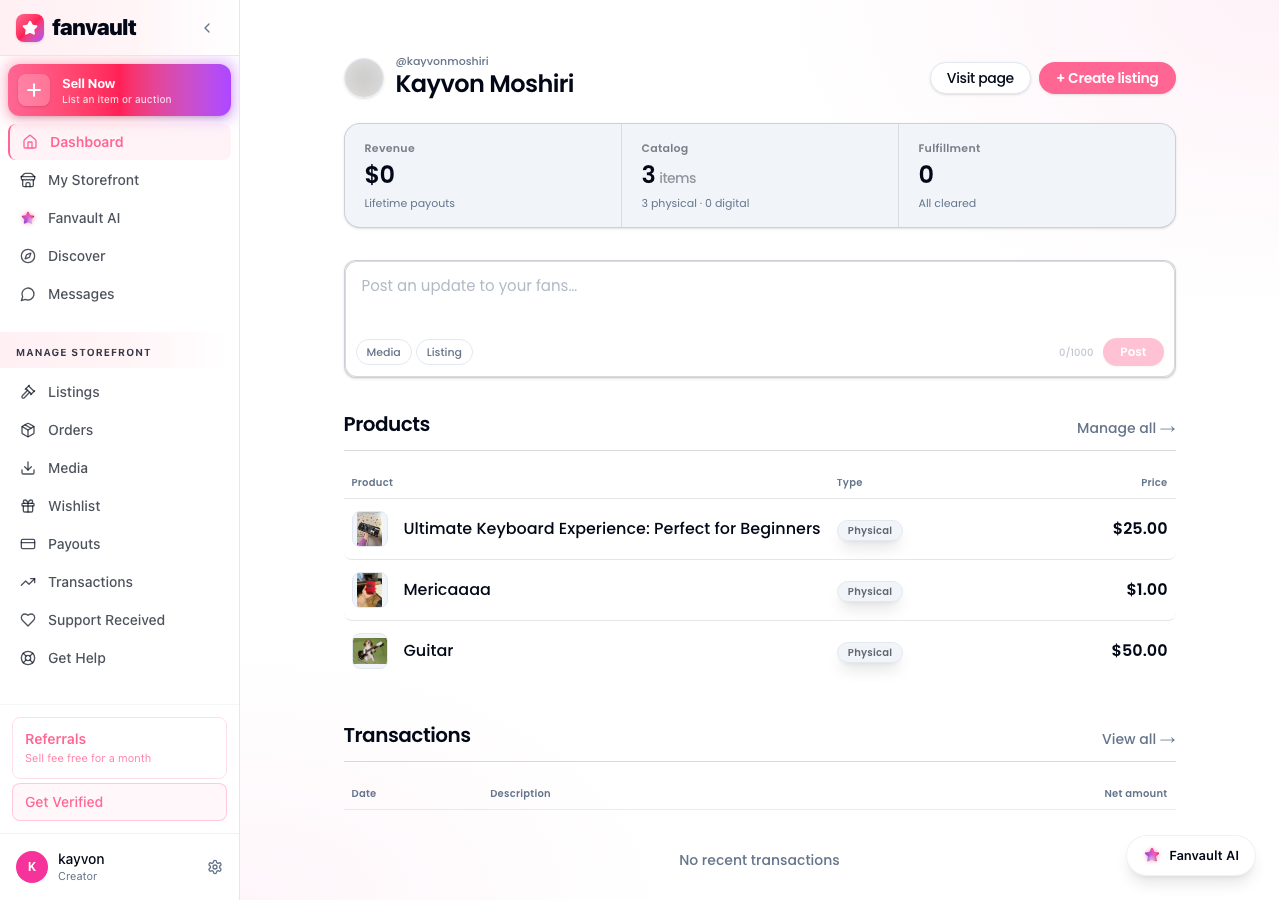
The panel remembers context from the page you opened it on. Sitting on the auctions screen when you open it means the first message is already framed around auctions, so you can skip the "what kind of listing" preamble and go straight to the details.
What can the panel create for you?
Anything that lives in a Fanvault storefront. Auctions, buy-it-now drops, digital products, and wishlist items all flow through the same chat surface. Tell it "list a signed jersey, reserve $250, seven-day auction" and it drafts the full listing, including title, description, category, reserve price, and a suggested duration.
Editing works the same way. Ask "shorten the description on my latest drop and bump the price to $80," and the panel makes the edit, shows the diff, and waits for you to confirm. Nothing changes on the live storefront until you say so.
How do you bulk-import listings from a video?
Drop a video into the panel, a stream VOD, a behind-the-scenes clip, or a haul reel, and the agent watches it, pulls out every item that looks like a listing candidate, and drafts a separate listing for each one. A ten-minute unboxing can turn into eight ready-to-publish drops in the time it takes to refill your coffee.
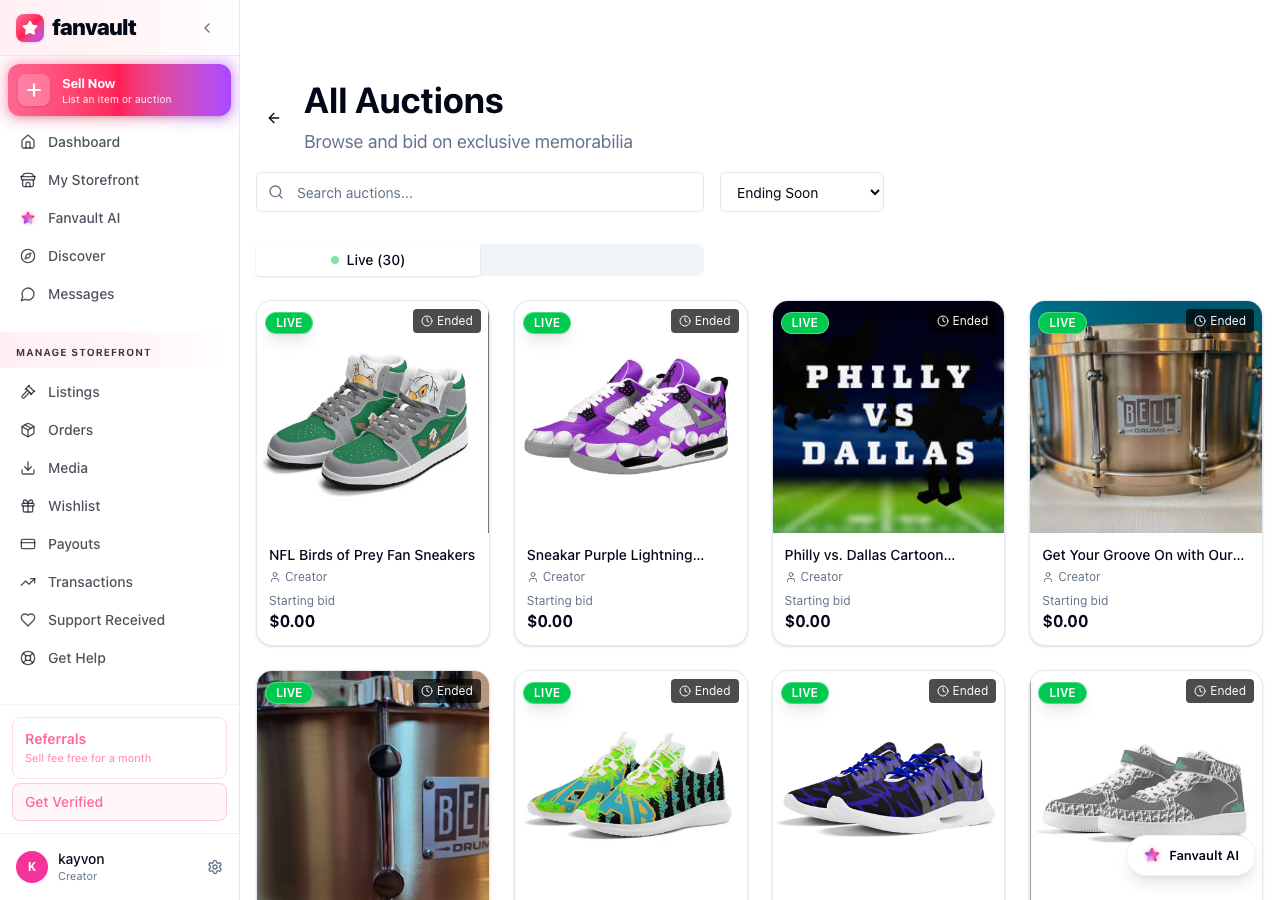
Each draft lands in your auctions queue as a card. You can publish them all at once, schedule them across the week, edit any one before it goes live, or kill the ones that miss. The agent never publishes without your sign-off, and the panel surfaces the moment in the video each draft came from so you can verify the item.
How do you edit an existing listing?
Open the panel on any listing detail page and the conversation is already scoped to that item. "Add three more photos from my last upload," "change the auction end time to Friday at 8 PM PT," or "extend the reserve by two hours" all work. You skip the form, you skip the dropdowns, and the panel applies the change the moment you approve it.
The same flow handles digital products. Update the description, swap the cover image, change the price, or add a new variant, all from the chat box without leaving the page you were on.
How do you review and publish what the panel drafted?
Every draft sits in a review state until you confirm it. The panel shows the full listing preview (price, duration, photos, category) and a publish button. You can keep talking to refine. "Make the title punchier" or "shift the reserve to $300" both apply instantly without rebuilding the listing from scratch.
If you want everything to ship without a final click, you can flip on auto-publish per category. Most creators leave it off for high-value memorabilia and on for digital downloads, where the friction outweighs the risk.
The AI Side Panel collapses what used to be the slowest part of running a Fanvault storefront, getting items from idea to live listing, into a single conversation. Your 92% take rate already does the math in your favor. The panel makes sure your shop is full enough that the math has something to work on.
Frequently Asked Questions
Do I have to learn special commands to use the AI Side Panel?
No. The panel understands plain language. "List a signed glove, $200 reserve, five-day auction" is enough to draft the listing. You can be more specific if you want, but the agent fills in sensible defaults for fields you skip and asks for clarification before publishing anything it is unsure about.
Can the AI Side Panel publish a listing without my approval?
By default, no. Every drafted listing sits in a review state with the full preview, price, photos, and duration visible before you confirm it. You can opt in to per-category auto-publish if you want low-friction items like digital downloads to ship without a final click. High-value memorabilia stays manual unless you change it.
What happens to the listings the panel drafts from a video?
They land in your auctions queue as separate cards, one per item the agent identifies in the clip. You can edit each one, publish them all together, schedule them across the week, or delete the ones you do not want. The panel also shows the timestamp in the source video each draft came from, so verifying an item takes one click. Nothing goes live until you decide.
Does the panel work for digital products and wishlist items too?
Yes. The same chat surface handles auctions, buy-it-now drops, digital products, and wishlist items. Tell it what kind of listing you want, or let it infer from the page you opened the panel on. Editing works the same way for every listing type, so you only learn the flow once.