Fanvault AI Side Panel is a chat assistant that lives on every page of your creator dashboard, ready to create listings, manage digital products, update your wishlist, and bulk-generate auctions from a single video. Instead of clicking through forms, you describe what you want and the panel drafts it for you. Here is how to use it without leaving the page you are already on.
⚡ Key Takeaways
- The Fanvault AI Side Panel lives on every dashboard page, so you manage your store from chat without leaving the page you are on.
- Create auctions, buy-it-now drops, PPV unlocks, paid DM packages, and tip prompts by describing what you want.
- Add wishlist items by link or description; Fanvault is the only platform in this category with a creator wishlist.
- Upload one video and the panel drafts a separate listing for every item it sees, ready for review.
- Every draft routes to your dashboard for review, nothing publishes without your tap, and the same flow works on Telegram.
- Creators keep 92% of every sale, and the panel makes sure your time on Fanvault goes to revenue, not data entry.
How do you open the side panel?
The panel is already there. From any dashboard page (overview, listings, drops, wishlist, payouts), tap the chat icon in the right rail and the side panel slides open with your context already loaded. It knows what page you are on, what you sell, and what you have shipped recently, so you can skip the setup small talk and get straight to the request.
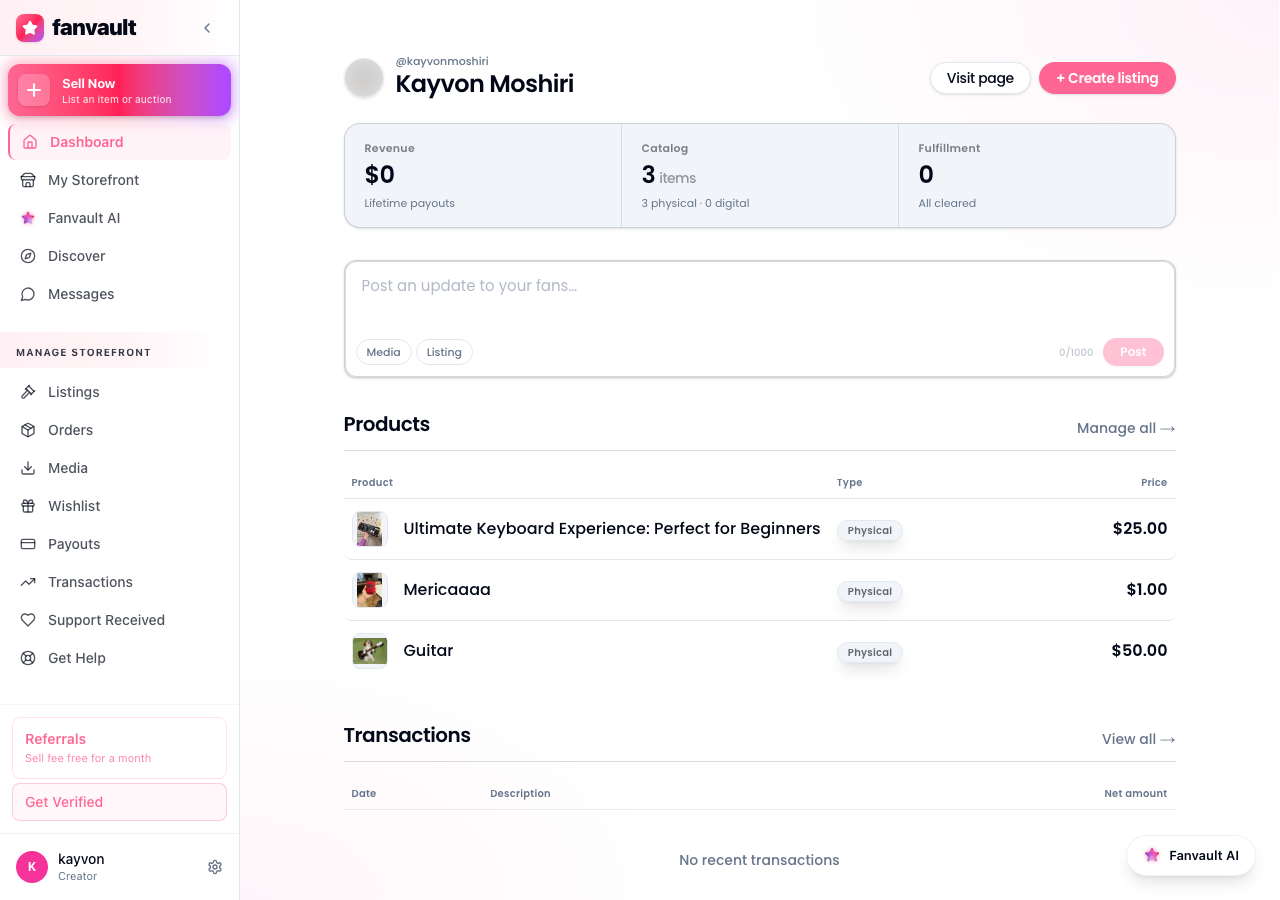
One thing to note. The panel persists as you navigate. If you start a draft on the auctions page and then click over to your wishlist, the draft is still right there in the same thread. Nothing to copy, nothing to lose.
How do you create a listing through chat?
Type what you want to sell. "Auction my stream-worn headset from last Saturday's tournament, reserve $200, ends Friday at 8pm." The panel pulls your provenance metadata, asks one or two clarifying questions (condition, signed or unsigned), and drafts the full listing with title, description, reserve, anti-snipe window, and shipping class filled in.
The same flow works for buy-it-now drops, paywalled posts, paid DM packages, and tip prompts. The panel keeps things consistent with how you have priced and described items before, so your storefront stays on brand without you having to re-explain it each time.
How do you manage digital products and your wishlist?
For digital products like PPV photo sets, gated video drops, and download bundles, the panel handles file attachment, preview thumbnails, paywall pricing, and tier eligibility from a single message. "Add this video as a $15 PPV unlock, free for Gold tier subscribers" is one line; the panel does the rest and shows you the draft before anything goes live.
Your wishlist works the same way. Drop in a link or describe the item ("a new Elgato Stream Deck"), and the panel adds it to your public wishlist with price, image, and a fan-friendly note about why you want it. Fanvault is the only platform in this category with a creator wishlist, so the panel is the fastest way to keep it fresh.
How do you bulk-generate listings from a video?
This is the part that saves hours. Upload a video of a stream, a haul, an unboxing, or a match (combat-sports athletes use this for entire fight nights), and the panel watches it, identifies each item, and generates a separate auction or drop listing for every one. Titles, descriptions, suggested reserves, and provenance notes are all drafted in a single pass.
You review the drafts in the panel as a stacked queue. Approve them one by one, edit the ones that need a tweak, and skip the ones that are not for sale. A 20-minute haul video can become 12 ready-to-publish auctions in the time it takes to make coffee.
How do you review and publish what the AI drafts?
Every draft the panel creates lands in your dashboard as a pending listing, not a live one. You see the full preview (image, title, description, price, reserve, fulfillment class) before anything goes public. Nothing publishes without your tap. Approve in the panel, schedule for later, or push edits back into the same chat to refine the draft.
The same review flow works on Telegram. If you have linked Telegram in your account settings, you can do every step in this article from your phone while you are on the move, and the drafts still land in your dashboard queue for one-tap publish.
What changes for you as a creator?
The mechanics of running a Fanvault store (listing items, pricing them, writing descriptions, keeping your wishlist current, turning a single video into a week of drops) stop being the work. You describe what you want, the panel drafts it, and you approve. Fanvault keeps 92% of every sale in your pocket, and the AI Side Panel makes sure the time you spend on the platform goes to the parts that actually move revenue.
Frequently Asked Questions
Do I need to know how to write product copy to use the AI Side Panel?
No. You describe the item in your own words and the panel drafts the title, description, reserve, and shipping class for you. It learns from the listings already on your storefront, so the voice stays consistent with how you have described items before. If you want to rewrite a draft, send the panel an edit ('shorter, less salesy, mention the tournament') and it revises the same draft in place. Your existing draft is never overwritten without you approving the new version.
Can the AI Side Panel publish a listing without my approval?
No. Every draft created by the panel lands in your dashboard as a pending listing. You see the full preview (image, title, description, reserve, fulfillment class) before it goes live, and nothing publishes until you tap approve or schedule it. This is true for auctions, drops, PPV unlocks, paid DMs, wishlist updates, and the bulk-from-video flow. The panel is a drafter, not a publisher.
Does the AI Side Panel work on Telegram or only the web dashboard?
Both. The web dashboard is where you see the visual previews and the bulk video queue. Telegram gives you the same chat interface on your phone, so you can draft listings, manage your wishlist, and triage fan DMs while you are away from your desk. Drafts created on Telegram still land in your dashboard queue, so you can review them on a larger screen before publishing if you prefer.
How is this different from competitors like Fanvue or Passes?
Fanvue charges 15% and Passes charges 10% plus $0.30 per transaction. Fanvault charges 8%, so creators keep 92% of every sale. That is the headline difference. The Side Panel and the conversational setup layer (chat or Telegram to create listings, manage digital products, and update your wishlist) are not offered by Fanvue, Passes, or Fanfix. Those platforms make creators build profiles, write listings, and reply to every DM by hand. Fanvault is built around the assumption that the busy work should not be the work.
What kinds of files can I upload for bulk-generation?
Video is the primary input. Stream VODs, unboxings, hauls, fight nights, behind-the-scenes clips, and match footage all work. The panel identifies items in the footage and creates a separate listing draft for each one. You can also upload a folder of photos, in which case the panel groups related shots and offers to bundle them into a single listing or split them across multiple drops. Either way, the drafts route to your dashboard queue for review before anything goes live.