Fanvault AI side panel is a chat and workflow surface built into every dashboard page on Fanvault, where creators talk to an assistant or kick off agent jobs (turning a video into draft listings, drafting auction copy, triaging fan DMs) without leaving the screen they're on. The panel stays pinned on desktop and slides up on mobile, so the assistant is one tap away whether you're editing a listing, reviewing an auction, or checking payouts.
⚡ Key Takeaways
- The Fanvault AI side panel is an always-open chat and workflow assistant pinned to every dashboard page.
- It persists across desktop pages and overlays mobile, with full context of your listings, auctions, and payouts.
- Workflow cards run multi-step agent jobs like turning a video into draft listings or triaging fan DMs.
- Threads sync across devices, so a mobile conversation continues on desktop without losing state.
- It collapses listing setup, auction copy, and fan triage into one conversational surface so you spend less time on admin.
What is the Fanvault AI side panel and why does it stay open?
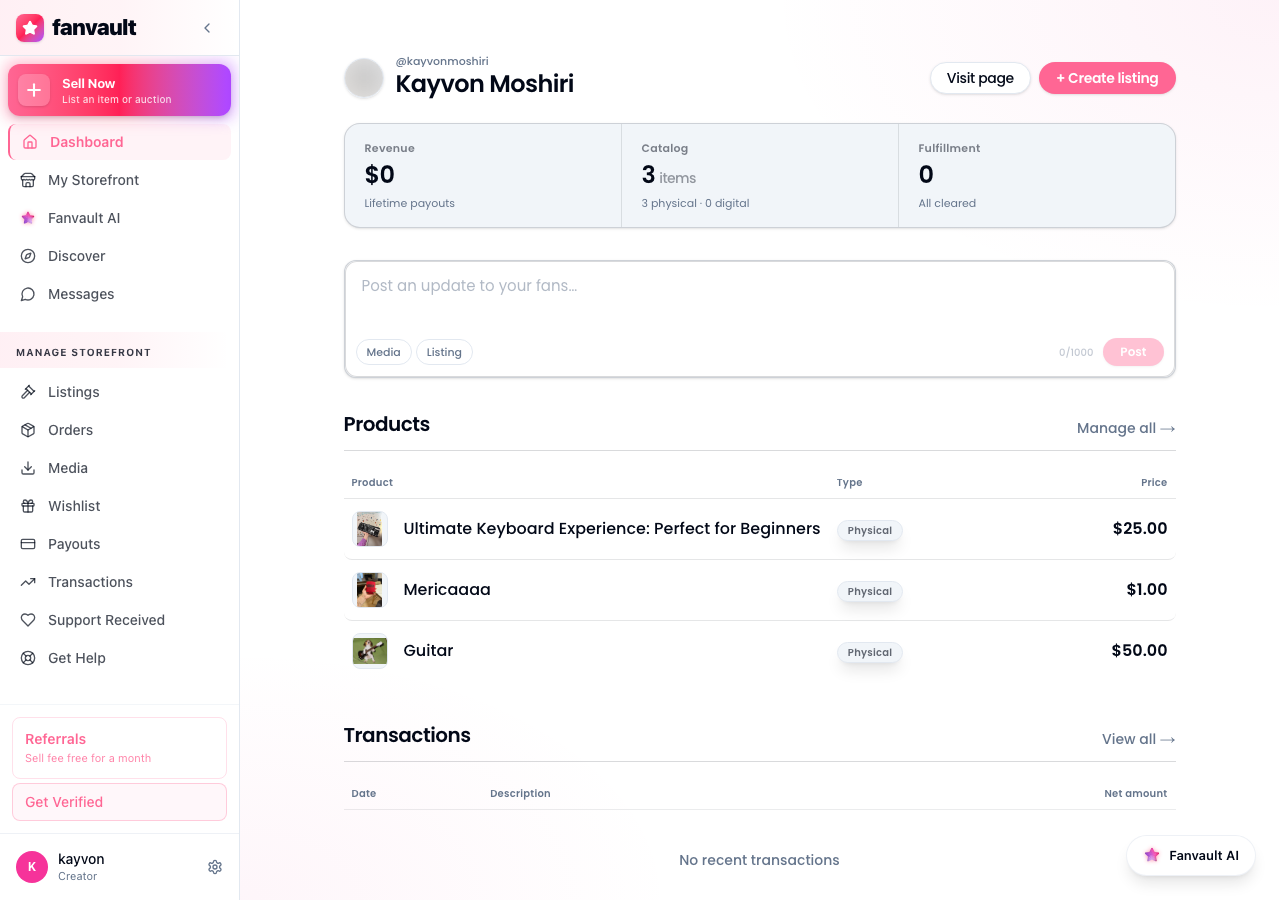
The side panel is the same assistant that runs your storefront from chat, surfaced inside the dashboard so you never have to switch tabs. On desktop it docks to the right edge of the screen and persists as you navigate between Listings, Auctions, Payouts, and Settings. On mobile it lives behind a single tap and overlays the page when you need it.
That persistence matters. Most platforms make you jump out to a separate tool, paste a prompt, copy a result back, and re-anchor yourself in the workflow. Fanvault keeps the assistant in the same window as the work, with full context of which auction or listing you're looking at.
How do you open the panel and start a conversation?
From any dashboard page, click the chat icon in the top-right corner (on mobile, tap the floating button in the lower right). The panel opens to your most recent thread, with a fresh input ready. You can type a free-form question like "What are my top three earners this month?" or pick a workflow card to skip straight to a structured job.
The assistant already knows your storefront, your active listings, your auction calendar, and your audience. You don't need to re-explain who you are or what you sell. Just ask.
What workflows can you run from the side panel?
Workflows are pre-built agent jobs that handle multi-step tasks Fanvault creators run all the time:
- Turn a video clip into three draft listings with titles, descriptions, and suggested prices.
- Draft auction copy and a reserve recommendation for a new piece of memorabilia.
- Pull a list of fans who tipped over $50 this month and write personalized thank-you DMs.
- Schedule a week of posts across your Fanvault feed from a single brief.
- Triage your unanswered DMs into "respond now," "send a paid PPV reply," or "ignore."
Tap a workflow card and the assistant asks for whatever it needs (a video file, an item photo, a tone preference) and runs the job in the background. You don't have to babysit it.
How does the panel handle a video-to-listing job?
Drop a video into the chat, pick Turn into draft listings, and the assistant pulls frames, identifies the items on camera, and writes a draft listing for each. For an authenticated memorabilia drop it includes provenance fields (signed, worn, condition) so you're not filling them in from scratch.
Drafts land in your Listings tab with a "review" badge. Approve, tweak the copy, set a price, and publish. The workflow saves you the part of selling that creators hate most: starting from a blank field.
Can you use it on mobile?
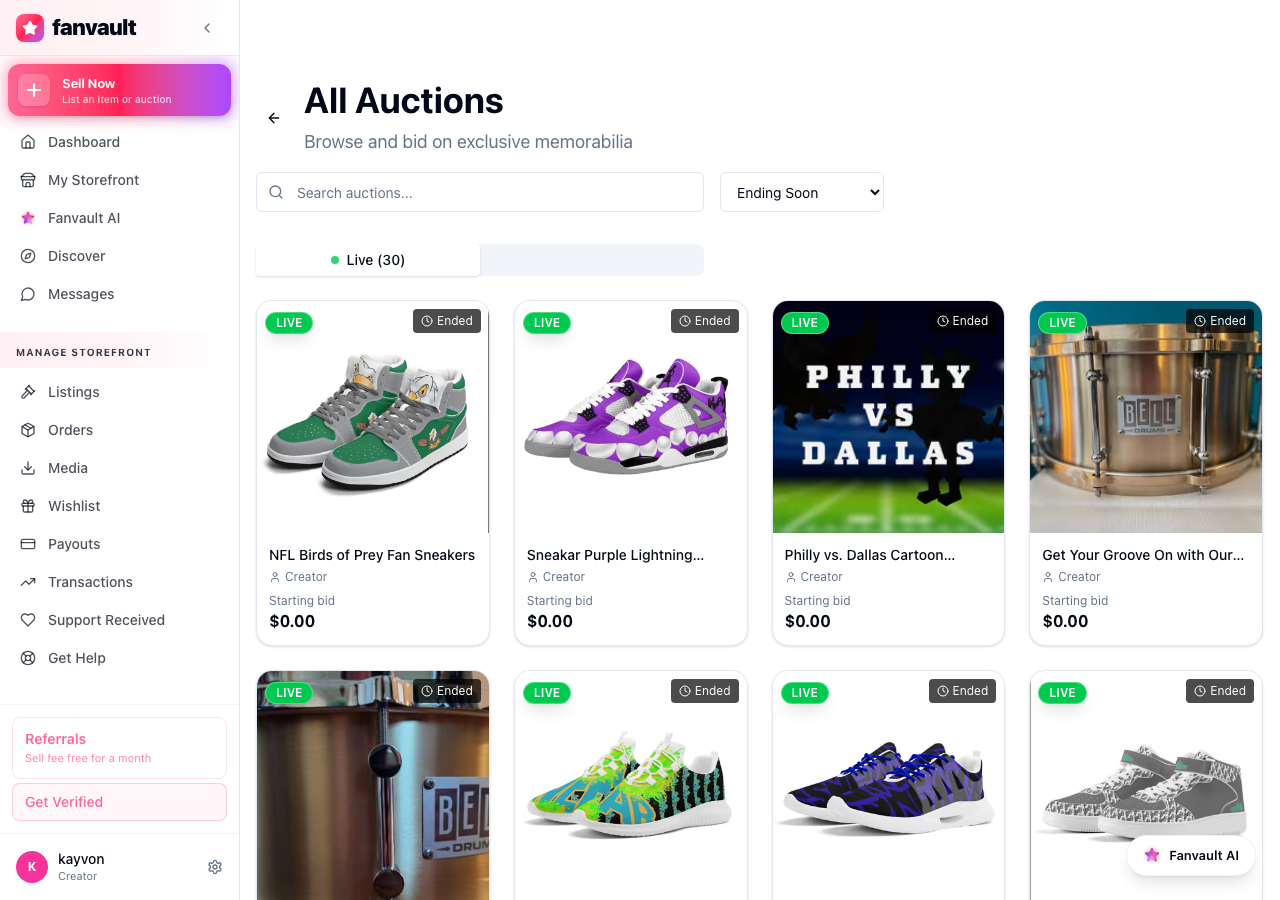
Yes. The panel works the same way on mobile, where it's arguably more useful. You can be filming on your phone, drop a clip into the assistant, and have draft listings waiting by the time you sit down at a desk. Threads sync across devices, so a conversation you start on mobile picks up exactly where you left it on desktop.
What does this mean for your day-to-day storefront work?
The Fanvault AI side panel turns the dashboard from a place you click around into a place you talk through. Listing setup, auction copy, fan triage, and payout questions all collapse into one conversational surface that's always open. You spend less time on storefront admin and more time on the work your fans actually pay you for. That's the point.
Frequently Asked Questions
What can the Fanvault AI side panel do that a regular chat window can't?
The side panel is wired into your storefront context. It already knows your active listings, your auction calendar, your payout history, and which page you're currently looking at. A generic chat window forces you to paste in screenshots or describe your dashboard before it can help. The side panel just acts on what you already have open.
Does the side panel know my listings and auctions automatically?
Yes. As soon as you open it, the assistant has access to your full storefront state through Fanvault's internal APIs. Ask "what's my reserve on the championship glove auction?" and you'll get the answer without uploading anything. The assistant can also act on that state, drafting a price change, extending an auction window, or pinning a listing to the top of your feed.
Can I run the panel on mobile?
Yes. On mobile, the side panel lives behind a floating button in the lower-right corner of every dashboard page. Tap it and the panel overlays the screen. You can record a video, drop it straight into the chat, and run any workflow you'd run on desktop. Threads sync across devices, so you can start a job on your phone and finish reviewing the drafts on your laptop.
Do I have to approve everything the AI drafts before it goes live?
Yes. Every workflow output (draft listings, auction copy, DM replies, scheduled posts) lands as a draft with a review badge. Nothing publishes to your storefront or sends to a fan until you approve it. You can also rerun a workflow with different inputs if the first pass isn't what you wanted.