Fanvault AI Side Panel is a global storefront control surface that lets creators run full CRUD on listings, digital products, wishlist items, and media uploads from any page on Fanvault, plus a video-to-listings bulk workflow in Agent mode. It puts the entire selling workflow one click away, no more switching tabs to add a drop, refresh a wishlist, or post a new media bundle.
⚡ Key Takeaways
- The Fanvault AI Side Panel is a global control surface for listings, digital products, wishlist, and media uploads.
- Assist mode handles one-off edits; Agent mode handles bulk video-to-listings imports.
- The overview view groups every active listing, drop, and wishlist item by surface in one snapshot.
- Agent mode scans video frame by frame and drafts a listing for every stream-worn or signed item it spots.
- Every upload runs the Sightengine moderation pass before going live, keeping your storefront brand-safe by default.
How do you open the AI Side Panel?
The side panel lives behind a single icon in the global Fanvault navigation, so it travels with you across every page in the app. Click the panel icon in the top-right corner and the surface slides in over your current view, ready to take instructions. You stay where you are. Your storefront comes to you.
The panel opens in Assist mode by default, which is the right starting point for one-off edits and quick listings. A toggle at the top swaps over to Agent mode whenever a bulk job is on the agenda.
How do you review your storefront overview?
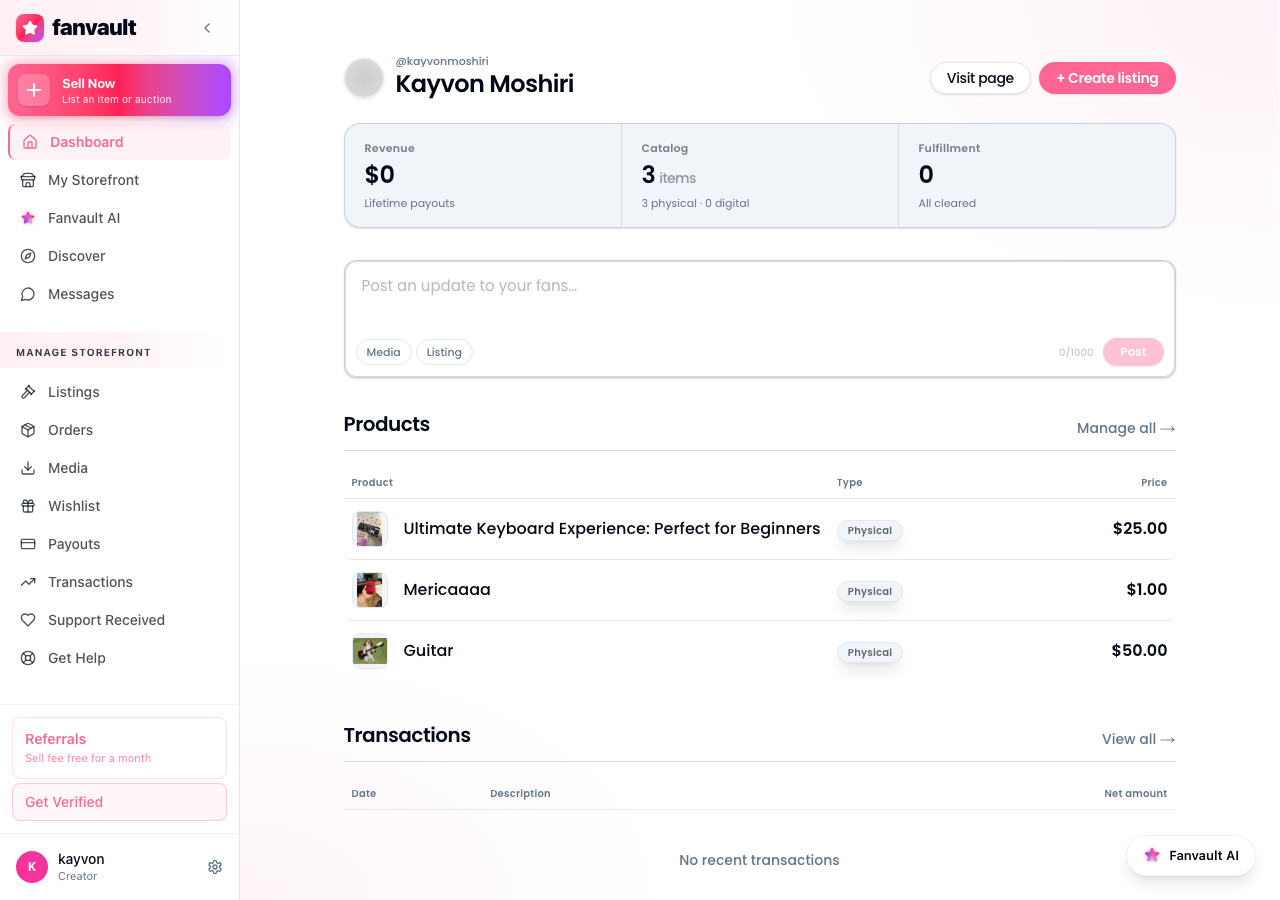
Once the panel is open, ask it for a snapshot ("show me my storefront" works) and it pulls a live view of every active listing, drop, and wishlist item in your account. The overview groups your inventory by surface (auctions, drops, digital products, wishlist) so you can spot gaps without scrolling through tabs.
This is the view to lean on every Monday morning. It surfaces what is running, what is about to end, and what slots are empty before the week even starts.
How do you create a new auction or drop?
From inside the panel, tell it what to list ("create an auction for the gloves from last night's stream") and it opens a structured form prefilled with sensible defaults. Reserve price, starting bid, anti-snipe window, provenance metadata, and the storefront category all live in one scroll. You bring the photos and the story, the panel handles the structure.
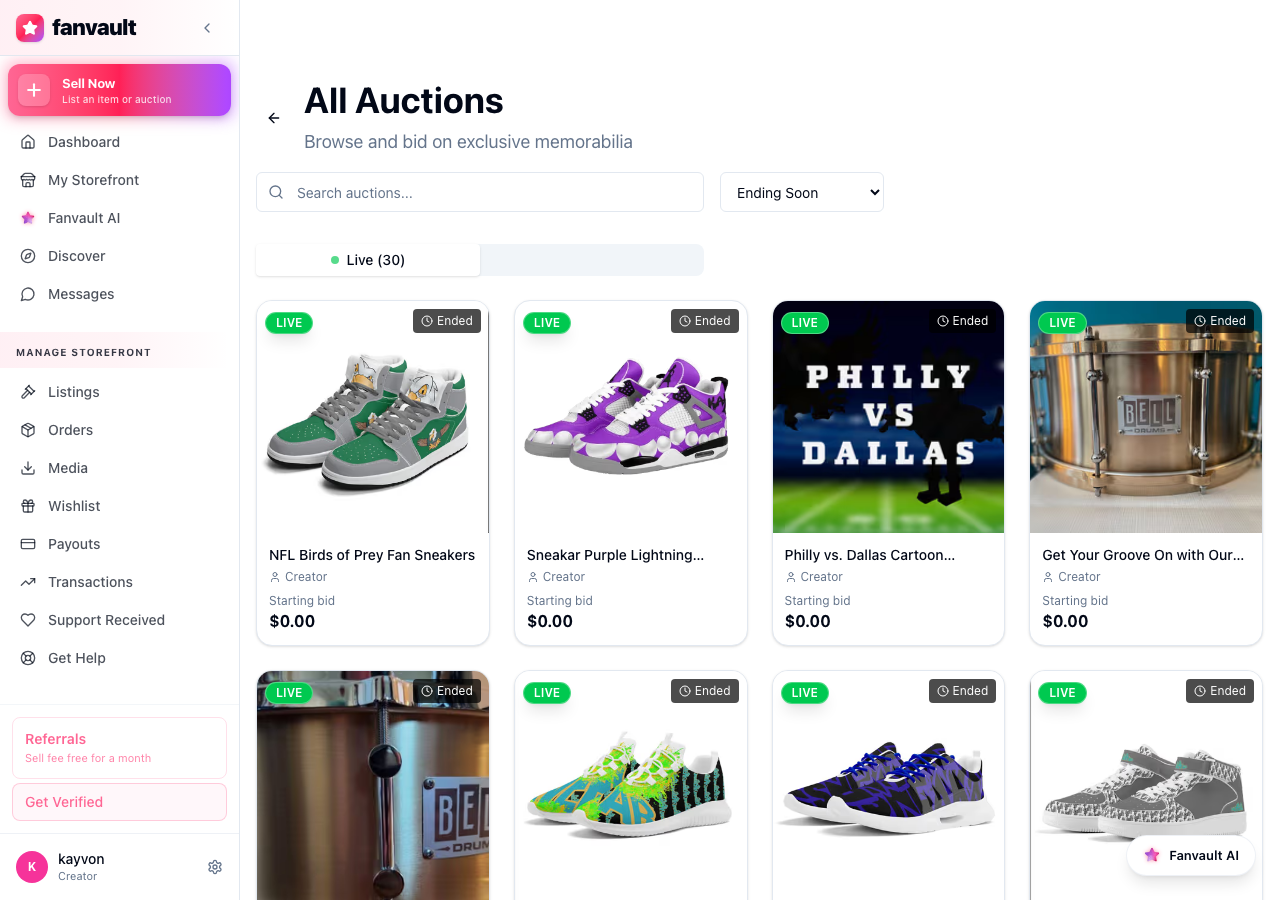
For buy-it-now drops, the same flow swaps the bidding fields for quantity and price. The panel remembers your last few drops so repeat formats (signed prints, monthly merch refreshes) take seconds to clone.
How do you upload media and digital products?
Media uploads and digital product files attach directly through the side panel without bouncing to a separate uploader. Drag a folder of photos, a long-form video, or a PDF playbook into the panel and it routes each file to the right destination (paywalled post, listing image, downloadable product) based on context.
Every upload runs through the same Sightengine moderation pass as the rest of the platform, so brand-safe files publish immediately and edge cases get queued for a quick human check.
How do you manage your wishlist?
Wishlists are Fanvault's quiet superpower (no other platform in the competitive set offers them), and the side panel makes them effortless to keep current. Paste a product link, a brand URL, or just a plain description, and the panel structures it into a wishlist entry with the cover image, price, and gift note prefilled.
Reordering, archiving, and clearing fulfilled items all happen inline. The wishlist stays alive without becoming a weekend project.
How does Agent mode turn videos into listings?
Switch the toggle to Agent mode and drop in a video (a stream VOD, a behind-the-scenes recap, an unboxing) and the panel walks through it frame by frame to surface listable moments. Stream-worn gear, signed props, one-of-one pieces, the agent flags each candidate with a timestamp and a draft listing.
You review the queue, edit the ones worth keeping, and bulk-publish in a single pass. A two-hour stream that used to produce three drops if you had the energy can now produce ten with thirty minutes of review.
What does this unlock for your storefront?
The Fanvault AI Side Panel collapses the gap between "I should list that" and "it's live on my storefront." Listings, digital products, wishlist items, and bulk video imports all sit one click away, on every page, every time. That keeps your storefront full, your fans coming back, and your 92% creator share compounding instead of stalling on the next admin block.
Frequently Asked Questions
When should I use Assist mode versus Agent mode?
Assist mode is built for fast, one-off actions: spinning up a single auction, fixing a price, adding a wishlist item, or pulling a quick overview. It is the default and the right pick for daily storefront upkeep. Agent mode is built for bulk work. Drop in a stream VOD or a folder of media and the panel will surface every listable moment, draft listings for each one, and queue them for your review. Use Agent mode after a long stream, a photoshoot, or any event that produced more inventory than you want to hand-key.
Does the AI Side Panel work on mobile?
Yes. The side panel renders as a full-screen sheet on mobile and supports the same Assist mode actions: creating listings, editing prices, updating the wishlist, and uploading photos straight from the camera roll. Agent mode video imports are best done on desktop, since long video uploads benefit from a stable connection and the review queue is easier to work through on a larger screen.
Can I undo a bulk publish from Agent mode?
Every Agent mode batch lands in a review queue first, so nothing publishes until you confirm. Inside the queue you can edit each draft listing, remove the ones you do not want, or discard the whole batch. If you publish a batch and then change your mind, each listing can still be unpublished or deleted individually from the storefront, the same way any other listing is managed.
Does the AI Side Panel cost extra?
No. The AI Side Panel is included with every Fanvault creator account at no additional cost, both Assist and Agent modes. The standard 8% platform fee on transactions is the only fee Fanvault charges, and that does not change based on which surface you used to create the listing. Creators keep 92% of every sale, whether the listing was built in the side panel, the full dashboard, or pulled out of an Agent mode video import.