Fanvault AI Side Panel is the persistent Chat and Agent assistant docked on every dashboard page that lets creators build listings, manage wishlists, upload media, and even bulk-generate a full drop from a single video. It collapses the gap between an idea and a live listing to about as long as it takes to type a sentence. Here is how to use it end to end.
⚡ Key Takeaways
- The AI Side Panel docks on every Fanvault dashboard page with two modes: Chat for questions and copy, Agent for write actions.
- Agent mode creates listings, edits drops, uploads media, and manages wishlists from plain-English requests.
- A single walkthrough video can be split into a full drop of 8 to 12 listings in one pass.
- Every Agent action ends in a confirmation card, so nothing publishes to your storefront until you tap Publish.
- It is included with Fanvault's flat 8% platform fee, creators keep 92% of every sale the panel helps them list.
Where do I find the AI Side Panel?
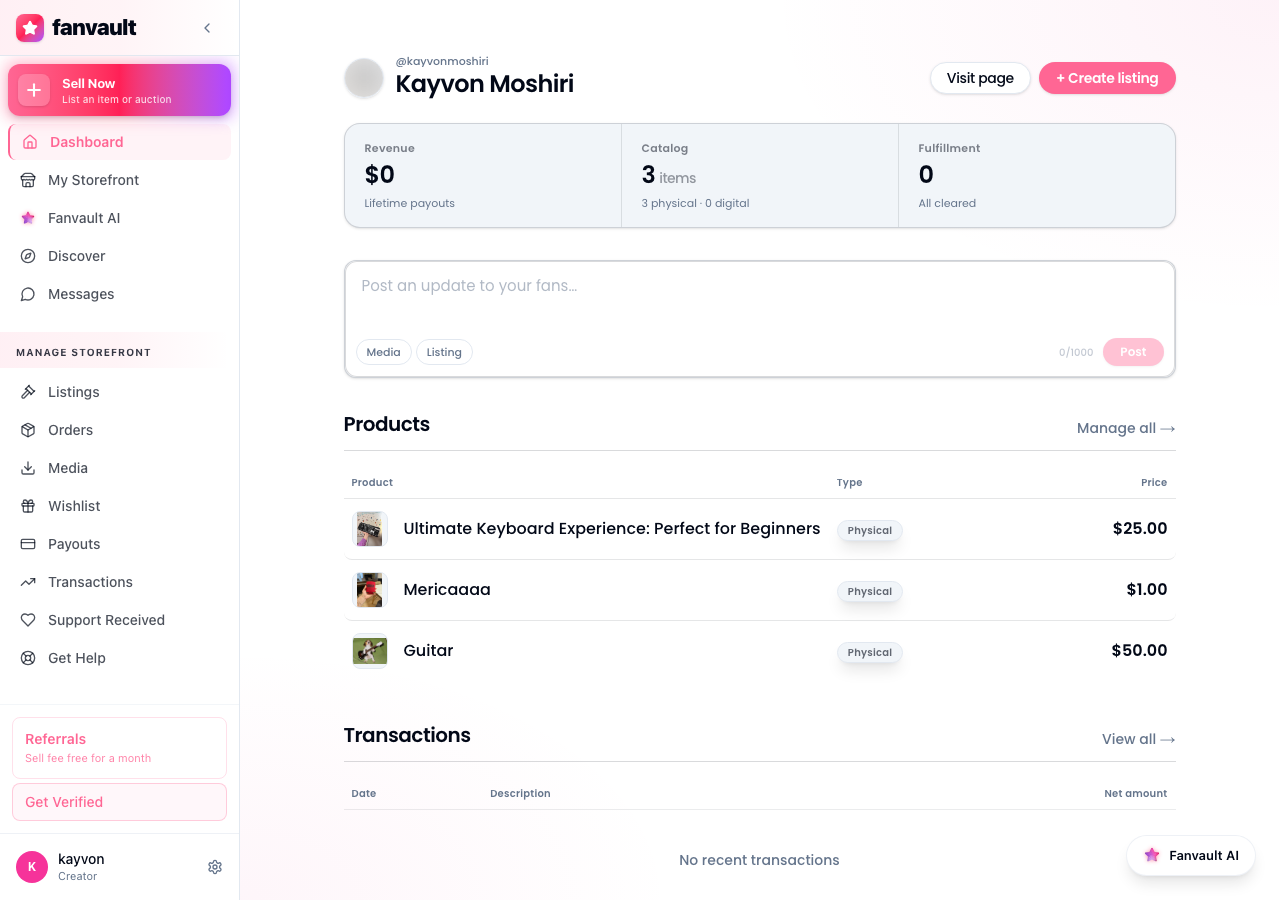
The panel lives on the right edge of every page in your Fanvault creator dashboard. Open any view (overview, auctions, wishlist, posts) and you will see the Chat and Agent toggle pinned in place, ready before you scroll. There is no separate window to launch and no plugin to install.
If the panel is collapsed, click the chevron on the right edge to expand it. It stays open as you navigate between dashboard pages, so a thread you started while reviewing your overview is still right there when you jump to auctions.
Should I use Chat or Agent mode?
The panel has two modes and the toggle sits at the top. Chat is for questions, drafting copy, brainstorming pricing, or asking how a Fanvault feature works. It answers in the side panel and does not touch your store.
Switch to Agent when you want the panel to actually do the work: create a listing, edit a product, update your wishlist, or schedule a post. Agent mode has write access to your storefront and will show you a confirmation step before anything goes live.
How do I create or edit a listing from the panel?
In Agent mode, describe the item the way you would describe it to a friend. Something like: "Create a buy-it-now drop for my signed Game 4 jersey, price 850, two units, ship from LA." The panel parses the request, drafts the title, description, price, and quantity, and previews the listing inside the side panel before saving.
Editing works the same way. Open any existing auction or drop, then tell the panel what to change ("bump the reserve to 500, add a second photo, push the close time by 24 hours"). You stay on the page you are looking at and the changes apply in place.
How do I upload media without leaving chat?
Drag photos or short video clips straight into the side panel. The Agent attaches them to whatever listing you are working on, runs them through Fanvault's content checks, and writes alt text on the way through. Provenance details (signed, stream-worn, condition notes) get appended to the listing metadata automatically.
How do I manage my wishlist from the panel?
Wishlists are one of the things only Fanvault offers in this category, and the panel makes them no-friction to maintain. Tell the Agent to "add the new Sony A7 IV body to my wishlist at top priority" or "clear anything older than six months" and the changes flow through. The wishlist updates without you ever opening the wishlist tab.
Can I turn a single video into a full drop?
Yes, and this is the move that makes the panel pay for itself. Upload one walkthrough video (you holding up the items, talking about each one) and ask the Agent to "split this into separate listings." It segments the footage, drafts one listing per item, pulls thumbnails from the clip, and queues them all for review.
You go from a five-minute phone video to a full drop of 8 to 12 listings in a single pass, all on Fanvault's flat 8% fee. That is hours of work compressed into the time it takes to record once.
How do I review and publish?
Every Agent action ends in a confirmation card inside the panel. You see the listing preview, the price, the media attached, and a Publish button. Approve to go live, edit inline to tweak a field, or tell the Agent to revise ("make the title shorter, drop the price by 10%"). Nothing hits your storefront until you say so.
The AI Side Panel turns the most tedious parts of running a Fanvault storefront (writing copy, uploading media, segmenting a haul video into listings) into a sentence-long instruction. You keep the taste and the judgment calls. The panel handles the typing.
Frequently Asked Questions
Does the AI Side Panel work on mobile?
Yes. The panel is built into the responsive Fanvault dashboard, so on phone or tablet it docks as a bottom sheet you can pull up over any screen. The same Chat and Agent modes are available, and you can describe a listing, attach media, and review the confirmation card without switching to desktop.
Can I undo something the Agent just did?
Yes. Because every Agent action ends in a confirmation card before it goes live, you almost always catch changes before they touch your storefront. If something does need to be reverted after publishing, ask the Agent in plain English to put the listing or wishlist back to its previous state, the same way you asked it to make the original change.
Will the Agent ever publish to my storefront without my approval?
No. The Agent drafts and stages everything inside Fanvault, then surfaces a confirmation card with a Publish button. The only way something goes live is for you to tap Publish. The same rule applies to price changes, schedule updates, and wishlist edits.
Does using the AI Side Panel cost extra?
It is included for every creator on Fanvault. There is no add-on fee and no token budget to manage. Fanvault's flat 8% platform fee covers it, so you still keep 92% of every sale the panel helps you list.