Fanvault AI side panel is a built-in assistant that lives on every dashboard page, letting creators chat with an AI helper or run agent workflows (like turning one video into multiple ready-to-publish listings) without leaving the screen they're on. One click opens it, one click closes it, and it carries context across pages so you can ask follow-ups while you work.
⚡ Key Takeaways
- The Fanvault AI side panel is an assistant that lives on every dashboard page, one click away.
- Chat mode answers questions and rewrites copy with full context on your storefront.
- Agent mode runs multi-step workflows, like turning one video into multiple ready-to-publish listings.
- Inside an auction draft, it writes titles, descriptions, reserve-price suggestions, and provenance copy.
- From the overview page, it summarizes earnings and drafts follow-ups to your top bidders.
- Every output is a draft you approve before it goes live.
How do you open the AI side panel?
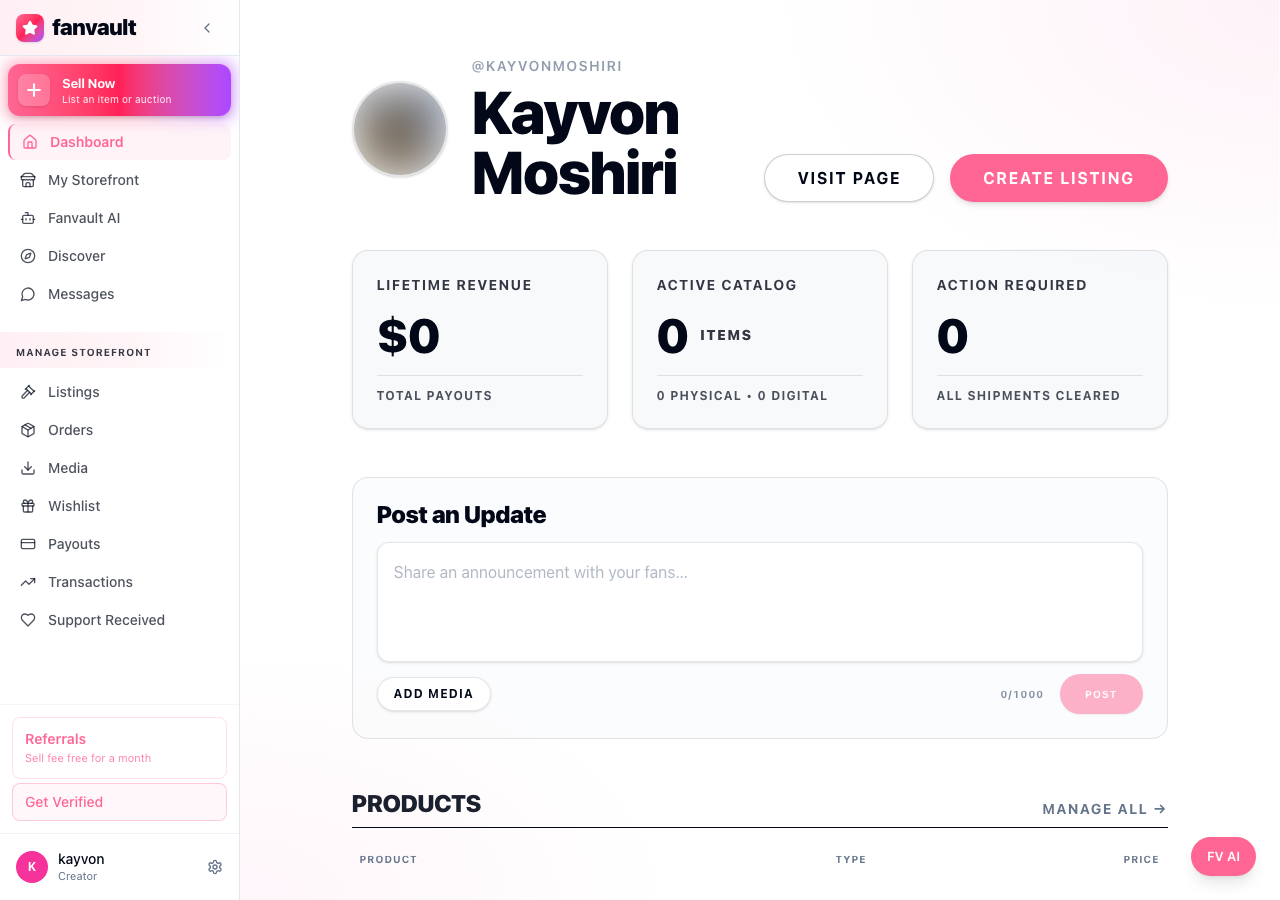
From any page inside your Fanvault dashboard, click the panel toggle on the right edge of the screen. The panel slides in over your current view without reloading the page, so whatever you were doing (drafting an auction, reviewing your overview, editing a listing) stays exactly where you left it.
Because the panel is global, you never have to navigate to a separate AI tools tab. It travels with you across every page in your Fanvault account, which means you can fire off a question mid-task and pick up right where you left off.
How do you start a chat with the AI assistant?
Type a question into the input at the bottom of the panel and press send. Ask anything from "what should I price this auction at?" to "rewrite this listing description in a warmer voice." The assistant has context on your storefront, so its suggestions reference your actual products, audience, and recent activity.
Chat mode is the right fit for one-off questions, quick rewrites, brainstorming drop names, or pulling up best practices for tier pricing. Treat it like a knowledgeable teammate you can ping any time without scheduling a call.
How do you run an agent workflow?
Switch the panel into agent mode and pick a workflow from the menu. The flagship example: feed it one video, and it returns multiple ready-to-publish listings (auction copy, drop descriptions, suggested reserve prices, even social hooks). What used to take an hour of copywriting collapses into a single prompt.
Workflows run in the background, so you can keep working on something else and the panel notifies you when the output is ready to review. Nothing publishes on its own. You approve every draft before it goes live, which means the AI does the heavy lifting while you stay fully in control of voice and pricing.
How does the panel help when creating an auction?
Open an auction draft and pop the panel. Ask it to write your title, polish your description, suggest a reserve price based on similar items in your storefront, or generate the anti-snipe extended-bidding copy fans will see. Every output drops into the editor with one click, no copy-paste loop required.
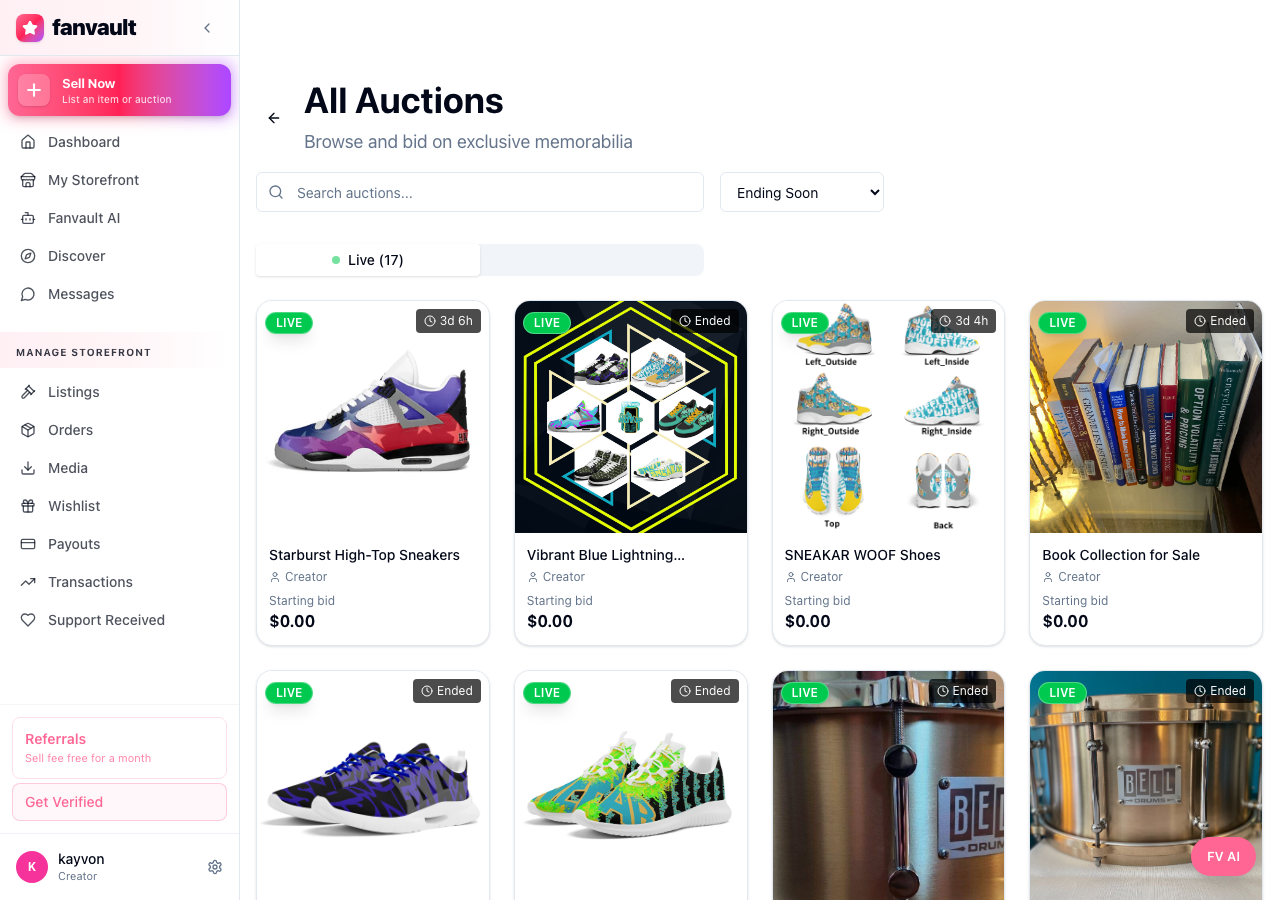
This matters most when you're listing authenticated memorabilia like signed merch, stream-worn apparel, or tournament gear. The AI helps you describe provenance clearly (signed, worn, condition) so bidders trust exactly what they're paying for.
What can you do from the dashboard overview?
On the overview page, the panel shifts into a more analytical mode. Ask it to summarize last week's earnings, flag listings that underperformed, or draft a follow-up message to your top bidders. Because the panel sees your overview data, it can answer specific questions about your numbers without you exporting anything to a spreadsheet.
If you'd rather not type, the same workflows are available from agent mode here too. Ask for a weekly recap, and you'll get a clean summary of revenue by source (auctions, drops, tips, paid DMs, wishlist) with suggestions for what to focus on next.
The Fanvault AI side panel is the practical proof that running a creator business doesn't have to mean juggling six tools and a content calendar. Ask it questions, hand it tasks, and let it do the parts you'd rather not do yourself, so you can spend more time creating and less time managing the back office.
Frequently Asked Questions
Do I have to enable the AI side panel, or is it on by default?
The AI side panel is available to every Fanvault creator by default. There is no setting to toggle on, no plan upgrade, no waitlist. Open any page in your dashboard and the panel toggle is right there on the edge of the screen, ready to use.
Does the AI publish listings or send messages on my behalf?
No. The AI side panel only drafts. Every output, whether it's an auction description, a follow-up message, or a weekly recap, lands in front of you for review first. You decide what gets published, what gets edited, and what gets thrown out. The agent workflows run in the background, but they always stop at the approval step.
What kind of context does the assistant actually see?
The assistant sees your storefront data: your listings, your past auctions and drops, your revenue mix across auctions, tips, paid DMs, and wishlist, and the page you currently have open. That's what lets it suggest a reserve price based on similar items you've already listed, or summarize your week without you exporting anything. It does not see private DMs from your fans, and it does not act on your account without your approval.
Can I use the AI side panel on mobile?
Yes. The panel works on phone and tablet views of your Fanvault dashboard, and the same chat plus agent workflows are available. Many creators draft listings from their phone with the panel open, then approve them later from a laptop. If you prefer a chat-only experience, the Telegram automation layer gives you the same kind of conversational interface from outside the dashboard.