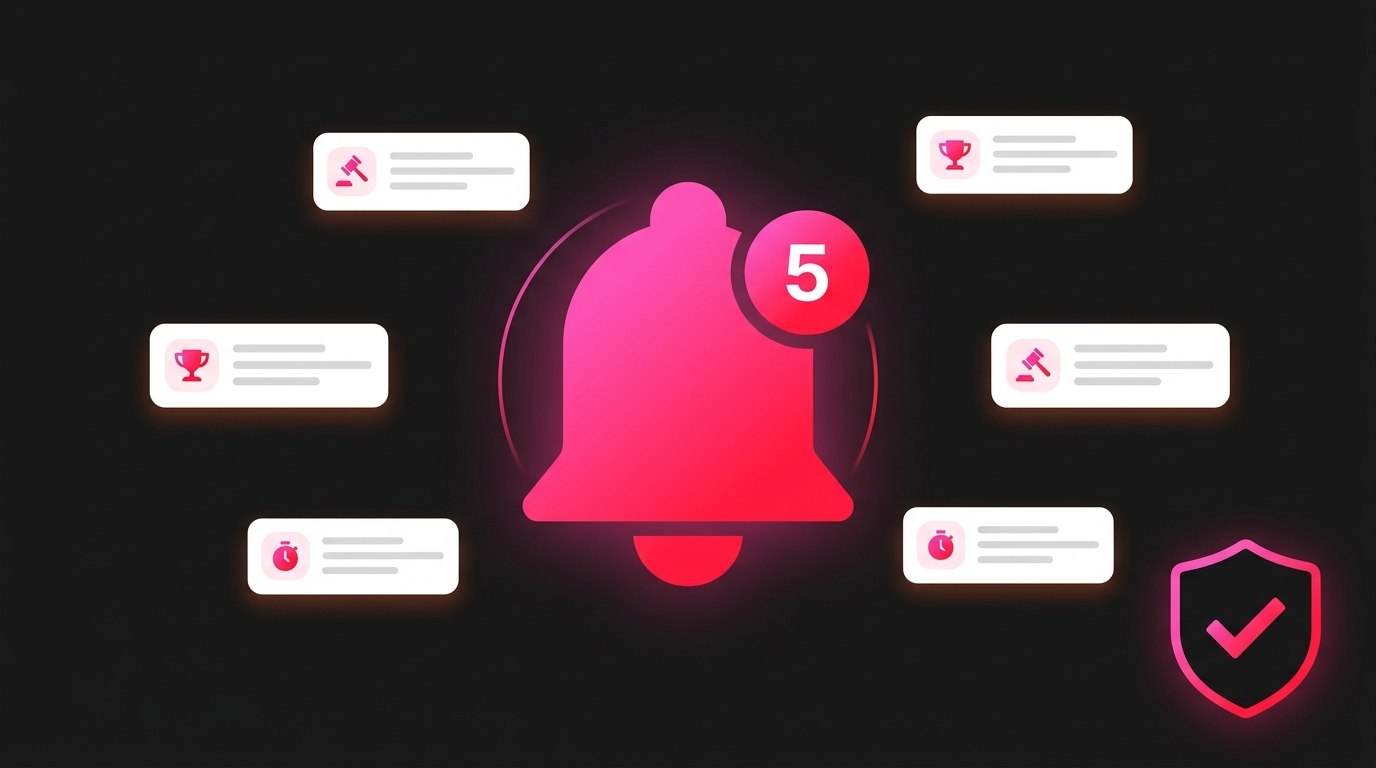
You listed your auction. Someone just placed a bid. Do you know? On most platforms, you’d have to keep refreshing your dashboard to find out. Fanvault works differently — the moment something happens on your auction, you know about it, wherever you are.
Your Notification Hub
Fanvault’s notification center lives at the bell icon in your top navigation bar. The badge count tells you exactly how many unread alerts you have — you’ll always know when something needs your attention without having to dig around. Click the bell or head to Alerts in your dashboard sidebar to open the full notification feed.
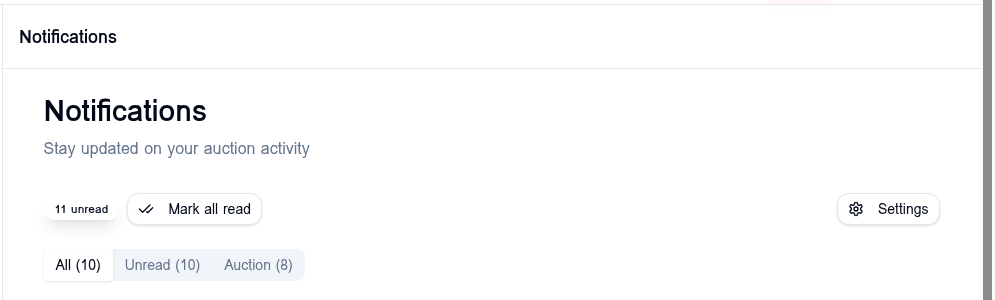
Your notifications are organized into three tabs: All, Unread, and Auction. You can mark everything as read in one click, or use the Settings gear on the right to jump straight to your notification preferences. Every in-app notification stays in your feed so you have a running history of activity on your account.
Five Notification Types, Built for Creators and Fans
Fanvault’s notification system covers everything that matters across the lifecycle of an auction. Here’s what each one does:
- Outbid Notifications — When you’re bidding on an item and someone places a higher bid, you get notified immediately so you can decide whether to bid again.
- Auction Won — The best notification. You get an in-app alert (and email) the moment an auction you won closes. Time to celebrate — and go complete payment.
- Auction Ending Soon — A heads-up reminder before auctions you’re watching are about to close, so you never lose out simply because you forgot the end time.
- Payment Reminders — Won an auction? Fanvault will remind you to complete payment if you haven’t yet — no lost sales from forgotten checkouts.
- New Bids (Sellers) — The most important one for creators: get notified the instant a fan places a bid on your auction. Know your item is getting traction the moment it happens.
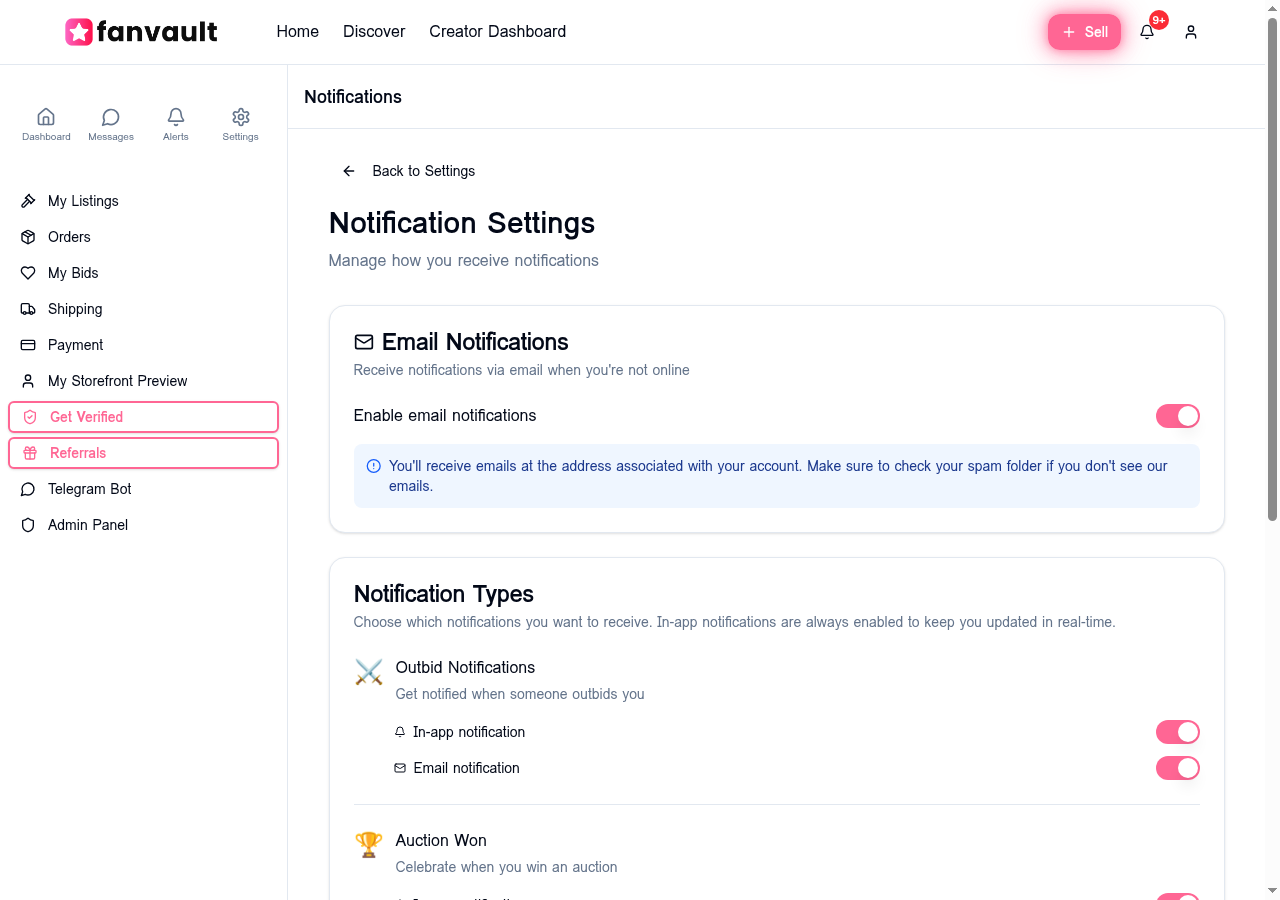
In-app notifications are always on — they’re how Fanvault keeps you updated in real time no matter what. Email notifications are optional and configurable per type, so you can turn them on for the alerts that matter and off for the ones that don’t.
How to Configure Your Notifications
To customize your notification preferences, go to Settings → Notification Settings (or click the gear icon on the Alerts page). You’ll see:
- A master Enable Email Notifications toggle at the top — one switch to turn all email alerts on or off
- Individual toggles for each notification type, letting you mix and match what hits your inbox

For creators, we recommend keeping New Bids (Sellers) enabled — it’s how you track real-time interest in your listings. Auction Ending Soon is also useful if you’re managing multiple active auctions and want a reminder before they close. Once you’ve made your changes, hit Save Preferences.
Anti-Snipe Protection: Automatic and Built In
Ever watched an auction get sniped — someone swooping in with a higher bid in the final seconds, leaving no time for anyone to respond? Fanvault prevents this with automatic anti-snipe protection. There’s nothing to turn on or configure. It just works.
When a bid comes in during the last couple of minutes of an auction, Fanvault automatically extends the end time — giving other bidders a fair chance to respond. This creates a healthier, more competitive auction environment where the highest genuine offer wins.
For creators, this matters a lot. Sniping artificially caps auction prices. Anti-snipe protection keeps the bidding war going, which often means a higher final price for your item. It’s one of those features you’ll be glad exists the first time a late-game bid war breaks out on something you’ve listed.
Stay in the Loop on Every Auction
Between real-time in-app alerts, configurable email notifications, and automatic anti-snipe protection, Fanvault is built to keep you in control of your auctions without requiring you to babysit them. List your item, configure your alerts once, and let Fanvault handle the rest — you’ll know the moment your fans start bidding, and you’ll know the moment it sells.