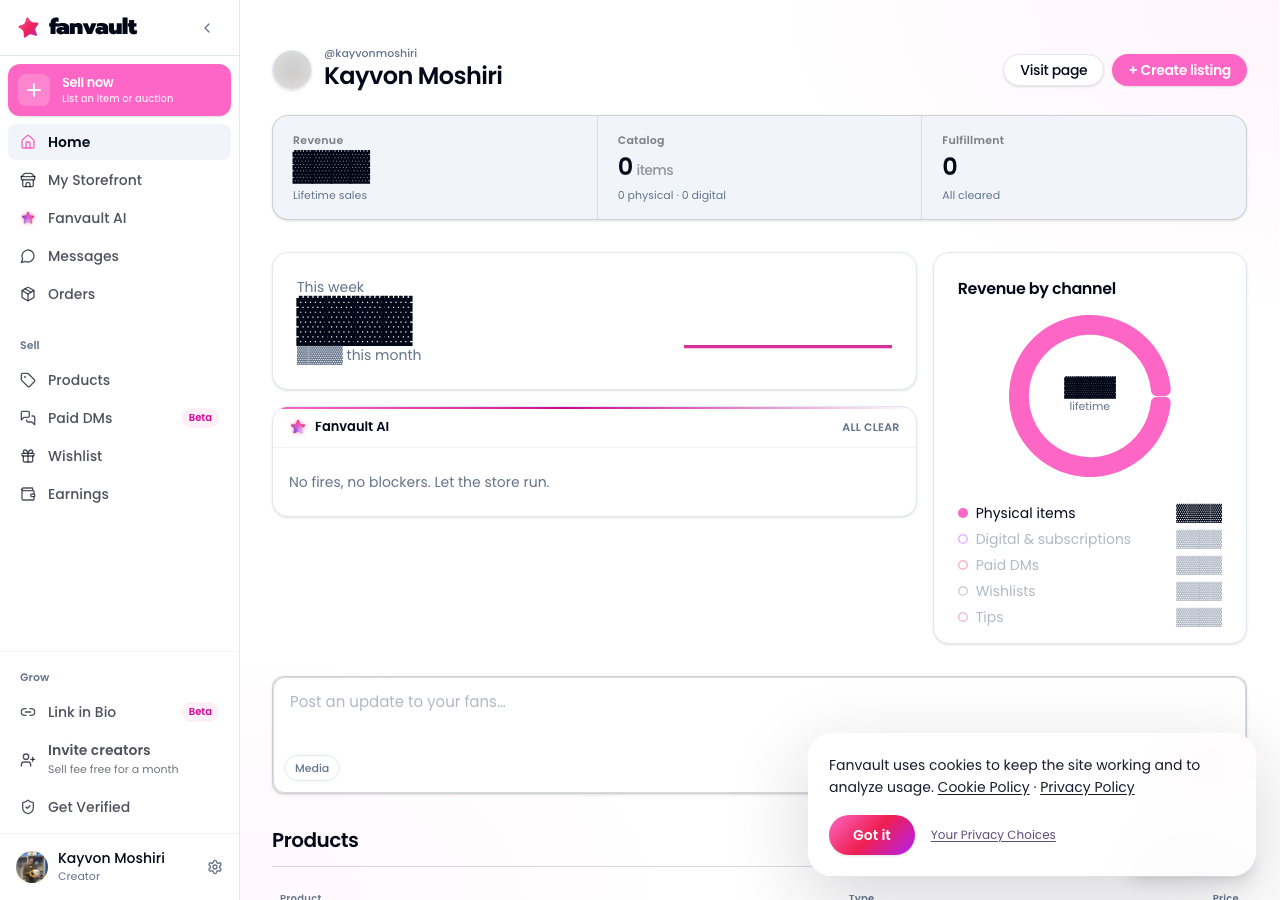
Fanvault Streamlined creator sidebar is the reorganized navigation creators use to move around their Fanvault dashboard. It groups everything into 12 items, puts payouts, transactions, and tips under one Earnings section with tabs, gathers every product under a single Products filter, and pins growth tools like Link in Bio and Get Verified on screen so they are always one click away.
⚡ Key Takeaways
- Fanvault's creator sidebar now groups everything into 12 items.
- Payouts, transactions, and tips live together in one Earnings section with tabs.
- Every product sits under a single Products filter.
- Growth tools like Link in Bio and Get Verified stay pinned on screen.
- Fanvault's platform fee is 8%, so creators keep 92% of every transaction.
What changed in the Fanvault creator sidebar?
The short version: fewer places to look, and the things you check most are grouped together. Fanvault rebuilt the creator sidebar around how creators actually work, which is mostly checking money, managing what you sell, and growing your audience.
Instead of hunting through separate menus, you now get a tight list of 12 items. Money lives in one Earnings section. Everything you sell lives under one Products filter. And the tools that help you grow stay pinned where you can see them.
How do you get around the new sidebar, step by step?
1. Open your creator dashboard
Log in to Fanvault and land on your dashboard. The streamlined sidebar sits along the side of the screen, and it is the same sidebar on every page, so you always know where you are.
2. Scan the 12 sidebar items
Take a quick pass down the list. With everything grouped into 12 items, the whole dashboard fits in one glance. Spend thirty seconds learning the order and you will rarely need to search for anything again.
3. Open the Earnings section
Click Earnings to see your money in one place. This is where payouts, transactions, and tips now live together, instead of being spread across separate menu entries.
4. Switch between the Earnings tabs
Inside Earnings, use the tabs to move between payouts, transactions, and tips. You stay in the same section the whole time, so comparing a recent tip against your transaction history takes a click, not a trip across the dashboard.
5. Find your listings in Products
Open Products to see everything you sell under one filter. Whether you are running an auction, prepping a buy-it-now drop, or managing your other listings, they all sit in the same view.
6. Use the pinned growth tools
Look for Link in Bio and Get Verified, which stay pinned on screen. Because they never get buried, growing your presence is always a single click away, even on a busy day.
Why does putting earnings in one section matter?
When your money is split across several menus, checking it becomes a chore, and chores get skipped. Grouping payouts, transactions, and tips under one Earnings section makes a daily money check fast enough to actually do.
| Task | Fanvault streamlined sidebar | Scattered navigation |
|---|---|---|
| Checking payouts, transactions, and tips | One Earnings section with tabs | Separate places to open |
| Finding something you sell | One Products filter | Hunting across menus |
| Reaching growth tools | Link in Bio and Get Verified pinned on screen | Buried in settings |
| Learning the dashboard | 12 items total | A longer list to memorize |
It also pairs well with Fanvault's economics. Fanvault charges an 8% platform fee, so creators keep 92%. A clear Earnings view makes it easy to see that money land.
Where do growth tools like Link in Bio fit in?
Growth tools tend to be the first thing creators forget about once the day gets busy. Pinning Link in Bio and Get Verified on screen keeps them in your line of sight, so the next step for your profile is always visible.
If you would rather not click at all, Fanvault's automation layer lets you manage your storefront, listings, profile, and orders through a chat interface, in-app or on Telegram. The sidebar is there for when you want to see everything laid out.
What does the streamlined sidebar unlock for you as a creator?
Less time navigating means more time creating. With your earnings in one place, your products in one filter, and your growth tools always visible, the Fanvault dashboard gets out of your way, so you can spend your energy on your fans and your next drop.
Frequently Asked Questions
Where did my tips go in the new Fanvault sidebar?
Tips now live inside the Earnings section. Open Earnings and switch to the tips tab. Payouts and transactions are in the same section, each on its own tab.
How do I find my auctions and drops?
Open Products in the sidebar. All of your products are grouped under one Products filter, so your storefront listings, including auctions and buy-it-now drops, show up in the same view.
Which tools are pinned in the Fanvault sidebar?
Growth tools like Link in Bio and Get Verified are pinned on screen, so they stay visible no matter which part of the dashboard you are in.
Does the new sidebar change Fanvault's fees?
The streamlined sidebar is a navigation update. Fanvault's platform fee is 8%, which means creators keep 92% of every transaction.
Can I manage my Fanvault account without using the sidebar?
Yes. Fanvault's automation layer lets you spin up a storefront, list items, edit your profile, schedule content, triage fan DMs, and manage orders through a chat interface, either in-app or on Telegram.