Fanvault Creator sidebar is the main navigation menu creators use to move around their Fanvault account. The new version trims the menu to 12 items, groups Products, Earnings, and Settings into fewer places, keeps growth tools like Link in Bio and Get Verified pinned on screen, and uses the same menu on desktop and phone, so you spend less time hunting and more time creating.
⚡ Key Takeaways
- The Fanvault Creator sidebar now has just 12 items.
- Earnings groups payouts, transactions, and tips and gifts in one place.
- Products and Settings each give related pages a single home.
- Link in Bio and Get Verified stay pinned on screen.
- The same menu works on desktop and phone.
What changed in the Fanvault Creator sidebar?
The short version: fewer places to look. Instead of spreading related pages across separate menu entries, Fanvault now groups them under a handful of clear headings. Products, Earnings, and Settings each act as a home base for everything in that area.
The menu is also consistent everywhere you use Fanvault. The same 12-item sidebar shows up whether you're on a laptop at your desk or checking in from your phone between streams, workouts, or shoots.
How do you find your way around the new sidebar?
Start on your creator dashboard. The sidebar sits alongside your main view, and every section you need is one or two taps away. Here's what the overview looks like:
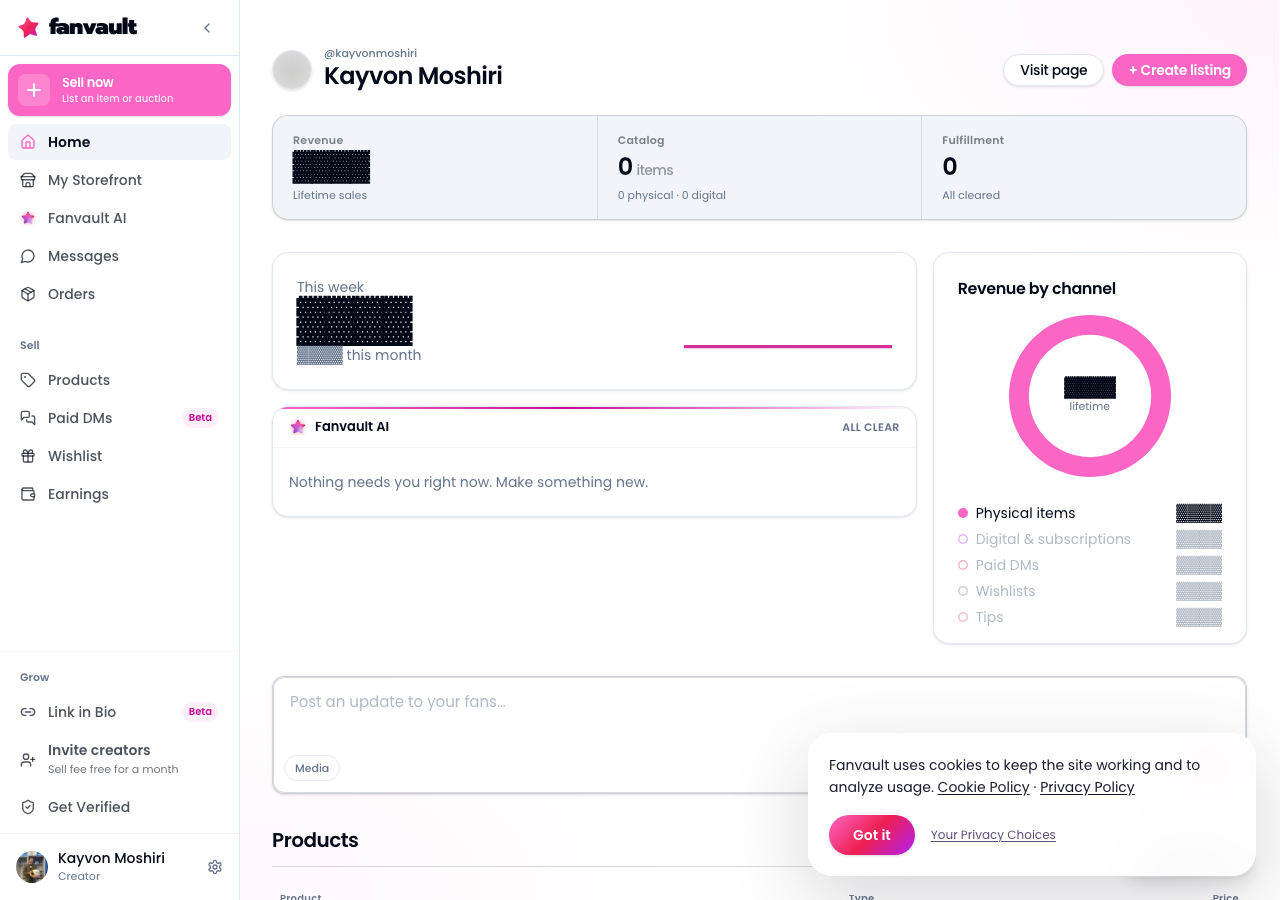
Take a minute to scan the full menu top to bottom. With only 12 items, you can learn the whole layout in one pass, which makes every visit after that faster.
Where do your earnings live now?
Everything money-related now sits under Earnings. That's where you'll find payouts, transactions, and tips and gifts together, rather than scattered across different corners of your account.
Having one place for revenue makes it easier to answer the questions creators ask most: what came in, where it came from, and what's on its way to you. And because Fanvault takes an 8% platform fee, the numbers you see reflect a business where you keep 92% of every transaction.
Where do your products and settings go?
The things you sell are grouped under Products. When you're ready to add something new or check on what's already live, that's your starting point.
Account preferences live under Settings. Profile details, account options, and the other controls you visit occasionally are tucked into one spot, so they stay out of the way until you need them.
Why are Link in Bio and Get Verified pinned?
Growth tools work best when you actually use them. That's why Fanvault keeps Link in Bio and Get Verified pinned on screen instead of burying them in a submenu.
Link in Bio helps you send followers from your other social channels straight to your Fanvault presence. Get Verified keeps the path to verification visible, so it's never a forgotten task. Keeping both in view means your next growth move is always one tap away.
Does the sidebar work the same on your phone?
Yes. The new sidebar uses the same menu on desktop and phone. You don't have to relearn where things are when you switch devices.
That matters for creators who run their business on the go. If you check earnings on your phone after a stream and then update a product from your laptop later, the layout stays familiar either way.
How does the new sidebar compare to the old layout?
| Task | Fanvault Creator sidebar (new) | Previous layout |
|---|---|---|
| Menu size | 12 items | More top-level entries |
| Finding payouts, transactions, tips and gifts | Grouped under Earnings | Spread across separate entries |
| Managing what you sell | Grouped under Products | Spread across separate entries |
| Growth tools | Link in Bio and Get Verified pinned on screen | Easier to lose track of |
| Desktop vs phone | Same menu on both | Less consistent across devices |
What does a simpler sidebar mean for your business?
Every minute spent clicking through menus is a minute not spent making content or talking to fans. A tighter sidebar cuts that friction down, especially for creators who check in several times a day.
It also pairs well with Fanvault's automation layer. If you prefer, you can handle tasks like editing your profile, listing items, or managing orders through a chat interface, in-app or on Telegram. The sidebar is there for the moments you want to look at things yourself.
The new Creator sidebar gives you a cleaner view of your whole Fanvault business: what you sell, what you've earned, and how you grow, all in 12 items that follow you from desktop to phone. Less navigating, more creating, and more of every sale staying with you.
Frequently Asked Questions
How many items are in the new Fanvault Creator sidebar?
The new Creator sidebar has 12 items. Related pages are grouped under Products, Earnings, and Settings so the menu stays short and easy to scan.
Where do I find my payouts and tips on Fanvault?
Open Earnings in the Creator sidebar. Payouts, transactions, and tips and gifts are all grouped there.
Is the Fanvault sidebar different on mobile?
No. Fanvault uses the same sidebar menu on desktop and phone, so the layout you learn on one device carries over to the other.
Why are Link in Bio and Get Verified always visible?
Fanvault pins these growth tools on screen so they're easy to reach. Link in Bio helps you drive followers from other platforms to your Fanvault presence, and Get Verified keeps the verification path front and center.
Can I manage my Fanvault account without using the sidebar?
Yes. Fanvault's automation layer lets you edit profiles, list items, schedule content, triage fan DMs, and manage orders through a chat interface, in-app or on Telegram. The sidebar is there whenever you want to navigate yourself.