The Fanvault Simplified creator sidebar is the redesigned navigation menu that groups every creator tool into 12 items. Earnings now has tabs for payouts, transactions, and tips. One Products page holds both physical and digital items, and growth tools stay pinned on screen. This guide walks you through each part so you can find what you need in fewer clicks and spend more time creating.
⚡ Key Takeaways
- The Fanvault creator sidebar now groups everything into 12 items.
- Earnings has three tabs: Payouts, Transactions, and Tips.
- One Products page holds both physical and digital items.
- Growth tools stay pinned on screen, one click away.
- Creators keep 92% of every transaction on Fanvault's 8% platform fee.
What changed in the Fanvault creator sidebar?
Fanvault reorganized the creator sidebar around how creators actually work. Instead of hunting through a long menu, you now see 12 items, each one a clear home for a group of related tasks.
Three changes do most of the heavy lifting. Your money lives in one Earnings section with tabs. Everything you sell lives on one Products page. And the tools that help you grow stay pinned where you can always see them.
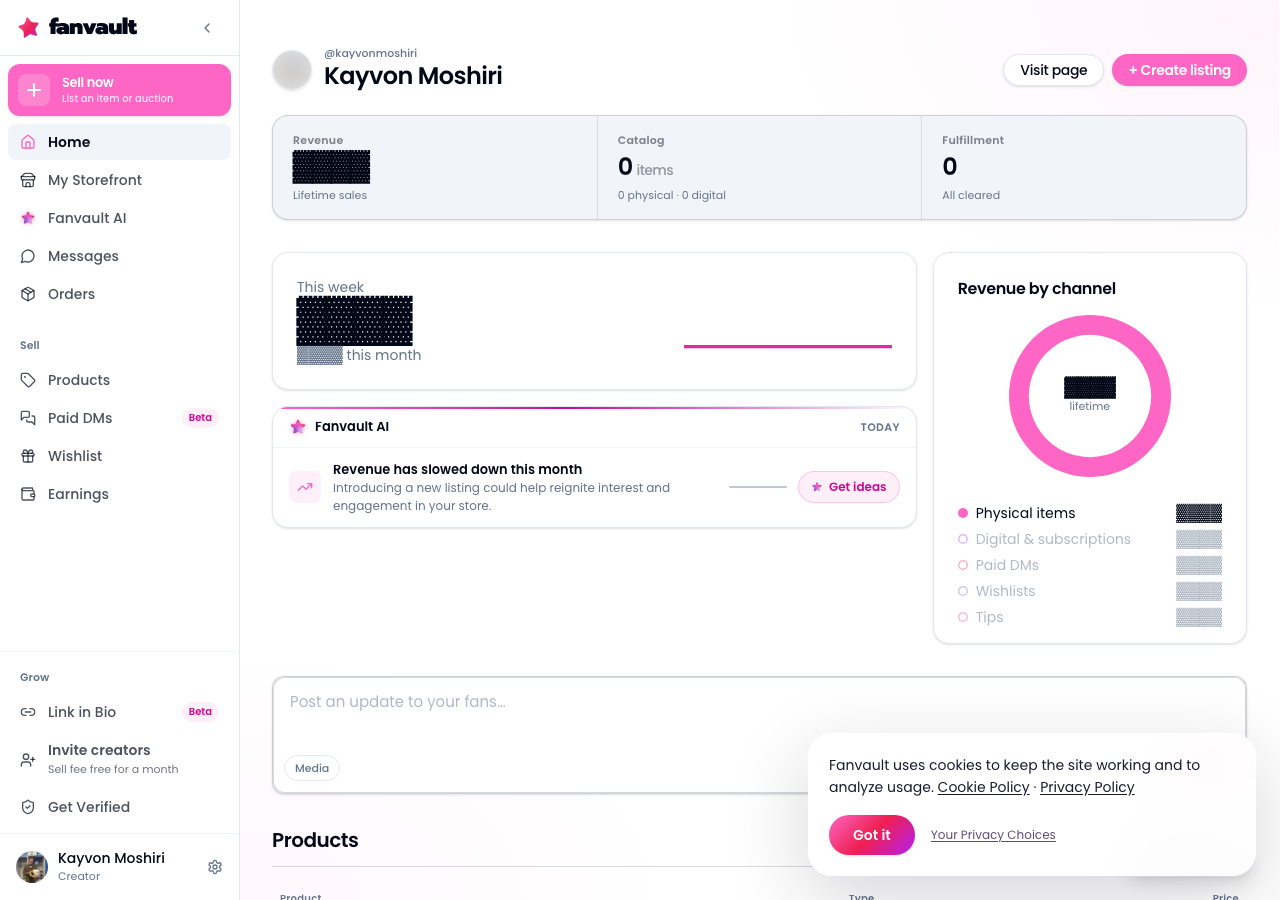
Here's a quick look at how the new layout maps to the jobs you do every day.
| What you want to do | Fanvault simplified sidebar |
|---|---|
| Check payouts | Earnings, Payouts tab |
| Review a sale or payment | Earnings, Transactions tab |
| See who tipped you | Earnings, Tips tab |
| Manage physical and digital items | One Products page |
| Reach growth tools | Pinned on screen |
How do you find your way around the new sidebar?
Start on your creator dashboard. The sidebar runs along the side of the screen and lists all 12 items at a glance. Take a minute to scan it top to bottom so you know where each section lives.
Because the list is short, you won't need to scroll or dig through nested menus to find a page. That alone makes the dashboard feel calmer, especially on busy launch days.
Where do payouts, transactions, and tips live now?
Open Earnings in the sidebar. Inside, you'll find three tabs: Payouts, Transactions, and Tips. Switch between them without leaving the page.
- Payouts shows the money heading to you.
- Transactions shows the individual payments behind it.
- Tips shows the support fans send directly.
Keeping all three together means you can answer "how am I doing?" in one place. And with Fanvault's 8% platform fee, you keep 92% of every transaction you see there.
How does the single Products page work?
Click Products to see everything you sell in one list, whether it's a physical item or a digital one. You no longer need to remember which page holds which kind of listing.
This matters if you mix formats. A streamer might sell paywalled content alongside signed gear or stream-worn apparel from their Fanvault storefront. Now both sit side by side, so restocking, editing, and reviewing your catalog happens from one screen.
Why are growth tools pinned on screen?
Growth is easy to put off when it's buried in a menu. Fanvault pins growth tools on screen so they're always one click away, no matter which section you're working in.
Treat that pinned spot as a nudge. After you check Earnings or update a product, glance at your growth tools and pick one small action to take before you log off.
How can you build a faster daily routine with the sidebar?
The simplified layout works best when you use it in a consistent order. A simple routine might look like this: open Earnings to check payouts and tips, open Products to update anything that's sold through, then use a pinned growth tool to reach more fans.
Run that loop every day and you'll know exactly where your business stands in a few minutes. Fewer clicks means less time on admin and more energy for the content your fans came for.
What does the simplified sidebar unlock for you?
A cleaner sidebar isn't just tidier, it gives you back focus. With your money, your catalog, and your growth tools each in one obvious place, Fanvault lets you run your creator business like a pro without feeling buried in menus, so you can spend your best hours making things fans love.
Frequently Asked Questions
How many items are in the Fanvault creator sidebar?
The simplified Fanvault creator sidebar groups every creator tool into 12 items, so you can see the whole menu at a glance without scrolling through nested pages.
Where do I find my payouts on Fanvault?
Open Earnings in the sidebar and select the Payouts tab. The same section also has Transactions and Tips tabs, so all of your money information lives in one place.
Do physical and digital products have separate pages?
No. Fanvault now uses one Products page for both physical and digital items, so you can manage your whole catalog from a single screen.
Where are the growth tools in the new sidebar?
Growth tools are pinned on screen, so they stay visible and one click away while you work in any other section of your dashboard.
How much does Fanvault take from my earnings?
Fanvault charges an 8% platform fee per transaction, so creators keep 92%. That compares to 15% on Fanvue, 10% + $0.30 on Passes, and about 20% on Fanfix.