Fanvault FV AI Side Panel is a global AI assistant pinned to every page of your creator dashboard, so you can chat your way to a finished listing, an updated wishlist, or a freshly imported digital product without ever leaving the screen you are on. Open it from any view, type what you want, and the panel does the building. Agent mode goes further, turning a single video into a batch of ready-to-publish drafts.
⚡ Key Takeaways
- The FV AI Side Panel is a global chat assistant pinned to every page of your Fanvault dashboard.
- Use plain English to draft auctions, drops, and digital products without leaving your current screen.
- Wishlist edits land instantly and update your public storefront on the spot.
- Agent mode watches a video and drafts a batch of listings, ideal for the end of a stream or fight night.
- Every chat-generated or Agent-generated listing stays a draft until you approve it.
How do you open the FV AI Side Panel?
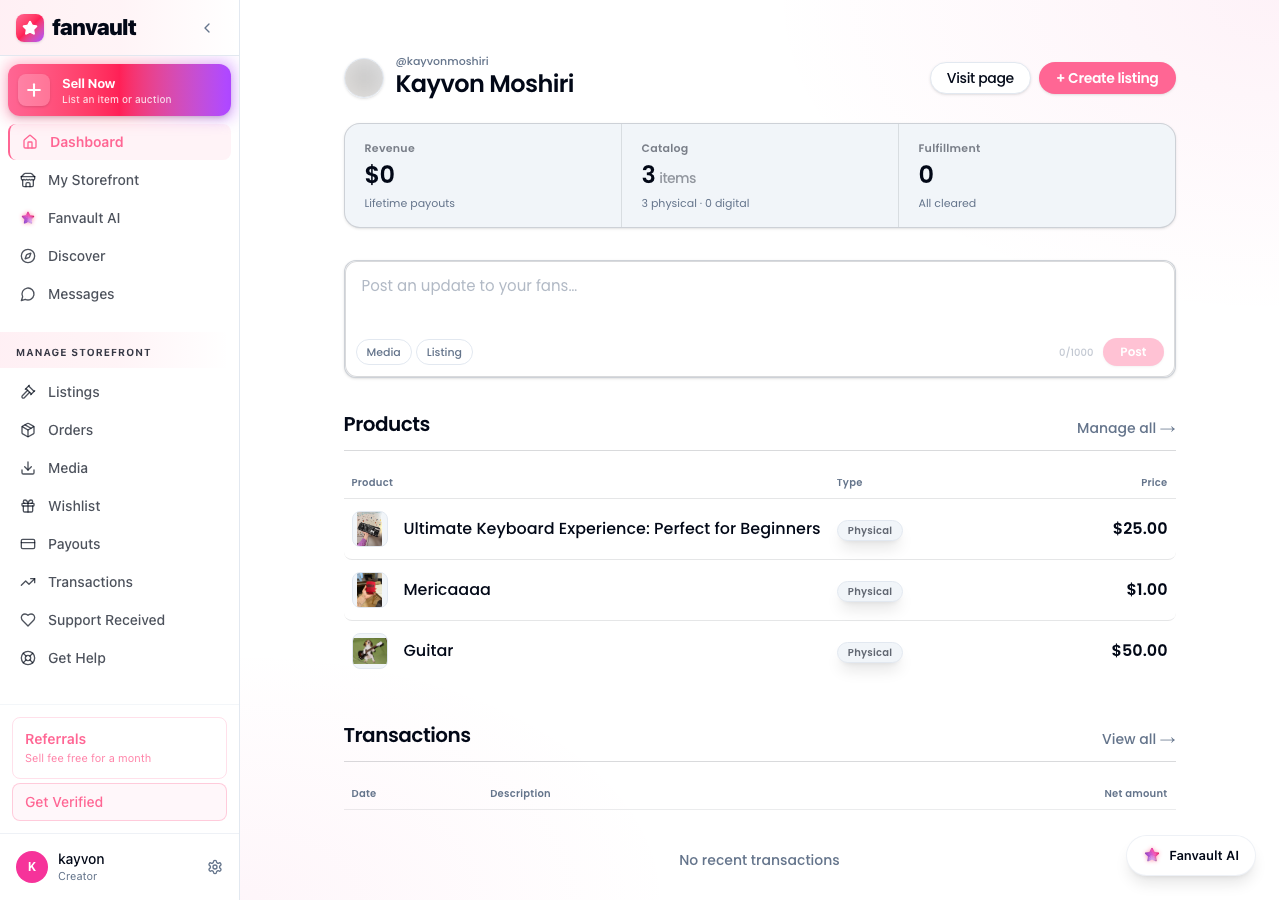
Look for the AI icon in the top right of your Fanvault dashboard. Click it from any page (auctions, drops, wishlist, digital products, profile) and the panel slides in from the right without bumping you off the screen you are on. It stays open as you navigate, so you can keep chatting while you move between sections. The first time you open it, the panel introduces itself and surfaces a few starter prompts based on what is on the current page.
How do you create a listing through chat?
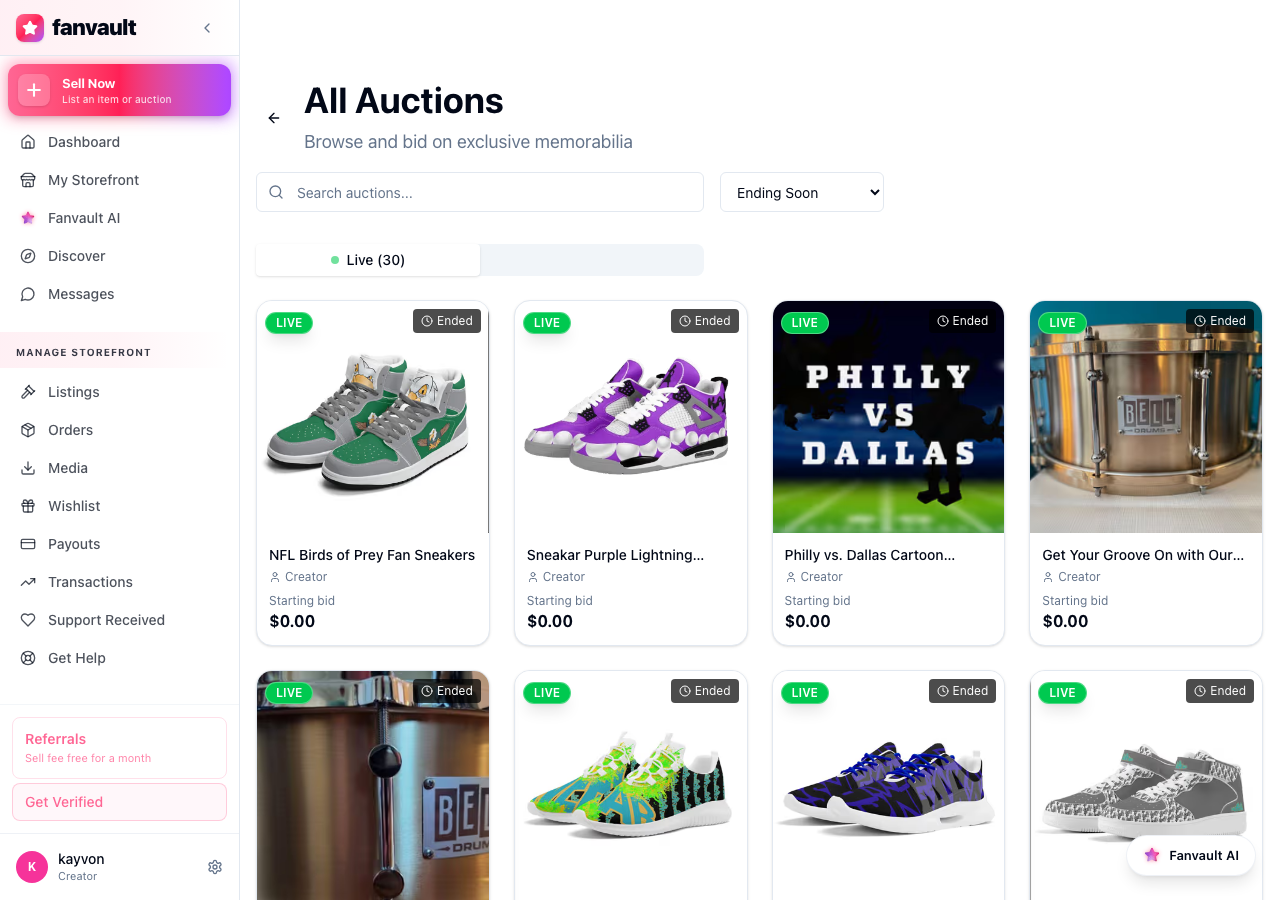
Type something simple, like "list my signed gloves from Saturday's fight, reserve $250, seven day auction." The panel asks for whatever is missing (photos, condition, shipping weight) and drafts the listing right there. You review, tweak any field, and confirm. The whole flow takes about a minute or two instead of clicking through a multi-step form. Auctions, buy-it-now drops, and bundled releases all work the same way.
How do you manage digital products by chat?
Tell the panel to "add a new digital product called Behind the Scenes Pack at $19, with 12 photos and 2 videos." It creates the product, attaches the files you uploaded, and sets the price. You can also ask it to bulk-update an entire collection in one message. A request like "raise every photo pack priced under $10 by two dollars" lands as a single confirmation step instead of dozens of clicks. Renaming, hiding, and archiving products work the same way.
How do you edit your wishlist?
Your Fanvault wishlist is one of the few places fans can fund a specific thing you actually want. Ask the panel to "add a Sony FX3 to my wishlist at $4,000" or "move my ring light to the top." The edits land instantly and your public storefront updates without a manual refresh. Wishlist reordering, removal, and price changes all run through the same chat box, so you never lose your place mid-task.
How does Agent mode work for bulk listings?
Agent mode is built for one of the messiest jobs in selling memorabilia: turning a long stream or a fight broadcast into a clean batch of itemized listings. Flip the toggle at the top of the panel, point Agent at a video, and it watches the footage, picks out wearable and signable items, drafts a listing for each one, and queues them for your approval. A 90 minute stream can yield a dozen draft listings in a single pass. Each draft includes a suggested title, reserve price, and a timestamp link back to the moment the item appears on camera.
How do you review and publish what the panel drafted?
Every chat-generated listing lands as a draft, not a live post. You see them stacked inside the panel with edit, approve, and reject buttons. Approve, and the listing goes live on your storefront. Reject, and it disappears. Nothing publishes until you say so, which keeps Agent mode safe to run at the end of any stream.
The shift here is real. You stop "doing the dashboard" and start running your store at the speed of conversation. List a fight-worn jersey while it is still on the hanger, refresh your wishlist between training sets, and let Agent mode turn last night's stream into a week of sellable drops. Your time goes back to creating, while Fanvault handles the listing work.
Frequently Asked Questions
Where do I find the FV AI Side Panel inside Fanvault?
Look for the AI icon in the top right of your Fanvault dashboard. It appears on every page, including auctions, drops, digital products, wishlist, and profile settings. Click once and the panel slides in from the right. It stays open as you navigate, so a conversation about your storefront can continue across multiple sections without restarting.
Does Agent mode publish listings automatically?
No. Every listing the panel drafts, whether through chat or Agent mode, lands as a draft inside the panel itself, with edit, approve, and reject buttons. Nothing publishes to your storefront until you approve it. That guardrail is intentional, especially for Agent mode, where a single video can generate a dozen drafts in one pass.
What kinds of video work best for Agent mode bulk imports?
Anything where sellable items appear clearly on camera. The most common use cases are full streams (worn apparel, props, signed merchandise the creator holds up), fight broadcasts (gloves, robes, shorts, walkout gear), and unboxings (cards, figures, collectibles). Higher resolution and steady framing help Agent identify items more accurately, but it also works from phone-shot vertical video.
Can I use the FV AI Side Panel on mobile?
Yes. The panel is available everywhere your Fanvault dashboard runs, including the mobile web view. On smaller screens it opens as a full-height drawer instead of a side panel, so the experience matches what you would expect on iOS or Android. Agent mode video uploads work on mobile too, with the option to pull straight from your camera roll.
Does using the FV AI Side Panel cost extra?
No. The FV AI Side Panel is included with every Fanvault creator account at no additional cost. Fanvault's standard 8% platform fee applies to anything you sell through listings the panel helps you create, exactly the same as if you had built each listing by hand. Creators keep 92% on every transaction either way.