The Fanvault Global AI side panel is an always-on Chat plus Agent assistant pinned to every dashboard page, letting creators manage listings, digital products, wishlists, and bulk video-to-listing workflows without ever leaving the screen they are on. Instead of navigating between five tabs to draft an auction, upload a clip, or update a wishlist item, you talk to the side panel and it handles the work in place. This guide walks through how to open it, switch between Chat and Agent modes, and use it to move faster across the dashboard.
⚡ Key Takeaways
- The Global AI side panel is an always-on chat assistant pinned to every Fanvault dashboard page.
- Chat mode drafts copy and answers questions; Agent mode takes actions on your account with your confirmation.
- Create auctions, drops, and paywalled posts by describing what you want, then review the draft before it goes live.
- Bulk upload videos by dragging in a folder and letting the panel queue them as listings in one batch.
- Manage your wishlist and digital products through the same chat surface, no tab switching required.
What is the Global AI side panel?
It is the conversational layer that powers Fanvault's automation promise. Most creator platforms make you build profiles, write listings, schedule content, and respond to fans by hand. Fanvault collapses that work into a chat surface that lives next to your dashboard, so the tool meets you on whatever page you are already working on.
The panel has two modes. Chat answers questions and drafts copy. Agent takes actions on your account, like creating an auction, uploading a video, or updating a wishlist entry, with your confirmation.
How do you open the side panel?
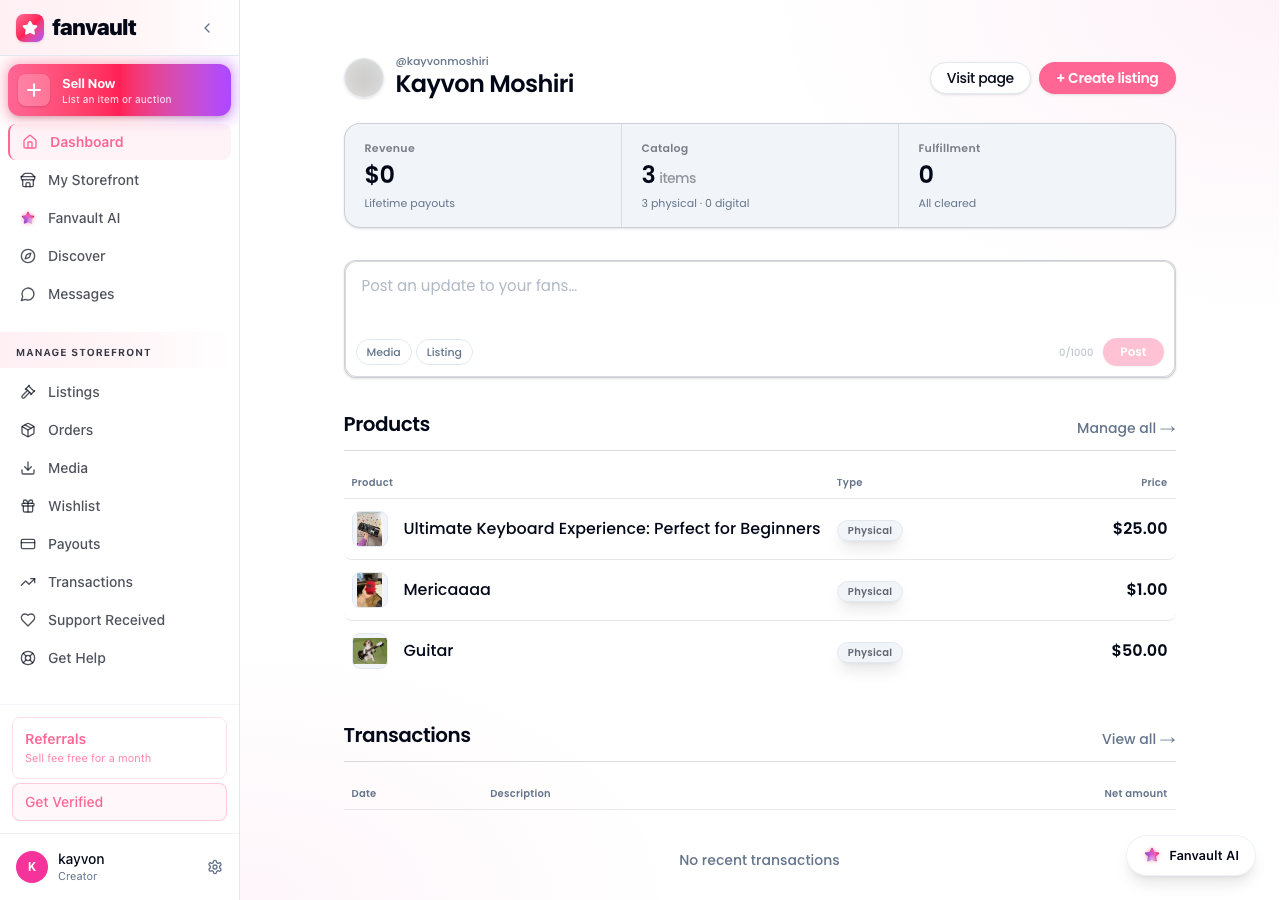
Sign in at fanvault.shop and land on your creator dashboard. The side panel lives on the right edge of every dashboard page, so you do not need to navigate to a separate section to find it.
If the panel is collapsed, click the chat icon on the right rail to expand it. It stays open as you move between Listings, Wishlist, Drops, and Profile, so context follows you across the dashboard.
When should you use Chat vs Agent?
Use Chat when you want to think out loud. Ask it to suggest a title for a signed jersey auction, rewrite a listing description in your voice, or recommend a reserve price based on your past drops. Chat replies inline, you copy what you like, and nothing changes on your account until you say so.
Use Agent when you want the panel to actually do the work. Tell it to create a new buy-it-now drop, queue ten clips as paywalled posts, or add three items to your wishlist with target prices, and it executes the steps and shows you the result for review.
How do you create a listing or auction from the side panel?
Open the panel from any page, switch to Agent mode, and describe what you want to list. For an auction, give it the item, the starting bid, a reserve if you want one, and how long the auction should run. The agent drafts the listing, pulls in your uploaded media, and shows you a preview before anything goes live.
Review the draft, edit anything that does not sound like you, and confirm. The listing posts to your storefront and the panel hands you a direct link to share. Proxy bidding, reserve prices, and anti-snipe extended bidding are all on by default.
How do you upload videos in bulk?
The bulk video-to-listing flow is the side panel's biggest time saver. Drag a folder of clips into the panel, or paste a list of file paths, and tell it whether each clip should become a paywalled post, a tipped post, or a digital product.
The panel groups the clips, suggests titles and prices for each one, and queues them all in a single confirmation step. Approve the batch and the panel publishes them to your storefront in order. What used to be twenty manual uploads turns into one conversation.
How do you manage your wishlist and digital products?
Tell the panel to add an item to your wishlist and include the price, the link, and a short note for fans. It writes the entry, pulls a thumbnail, and slots it onto your wishlist page. The same flow works for digital products: describe the file, the price, and the access rules, and the panel sets up the gated listing.
You can also ask the panel to audit what is already live. Prompts like "which wishlist items have not sold in 30 days" or "show me my top three digital products this month" return a quick read of what is working without leaving the page you are on.
What does this unlock for you as a creator?
The Global AI side panel is what makes Fanvault feel less like a dashboard you operate and more like a storefront that runs itself. Auctions, drops, paywalled posts, wishlists, and digital products all live behind the same chat surface, so the work scales with your output instead of your patience. Spend the time you used to lose to clicking on the part of the business only you can do, talking to your fans and making the next great drop.
Frequently Asked Questions
Do I need to open the side panel from a specific page?
No. The Global AI side panel is pinned to the right edge of every page inside your Fanvault creator dashboard. If it is collapsed, click the chat icon on the right rail to expand it. Context follows you across Listings, Wishlist, Drops, and Profile, so you can start a task on one page and finish it on another without losing the thread.
What is the difference between Chat and Agent mode?
Chat mode is conversational. It answers questions, drafts titles and descriptions, and suggests prices, but it does not change anything on your account. Agent mode is actionable. When you ask it to create a listing, upload videos in bulk, or update your wishlist, it does the work and shows you a preview before publishing. You always confirm before anything goes live.
Can the side panel really upload a whole folder of videos at once?
Yes. Drag a folder of clips into the panel or paste a list of file paths in Agent mode and tell it how each clip should be listed (paywalled post, tipped post, or digital product). The panel groups the files, suggests a title and price for each one, and queues the whole batch in a single confirmation. Approve once and the clips publish to your storefront in order.
Does using the side panel change Fanvault's platform fee?
No. Fanvault's platform fee is 8% on every transaction whether you create a listing from the side panel or build it manually. Creators keep 92% either way. The side panel is about saving you time, not about changing the economics of what you sell.
Is the side panel available to every Fanvault creator?
Yes. The Global AI side panel ships on every creator dashboard by default. There is no upgrade or add-on to enable it. As soon as your invite-gated onboarding is complete and your account is verified, the panel is live on every dashboard page you visit.